For years, robots.txt has operated more like etiquette than enforcement. You publish a list of places crawlers should not go, then hope everyone plays nice. When they do not, figuring out who broke the rules and what they were trying to access usually means spelunking through server logs, the kind of chore that slides down the backlog. It has been a gentleman's agreement, even as scraping has become automated and industrial.
That arrangement is getting harder to live with. Microsoft just added robots.txt violation reporting to its free Clarity analytics tool, and it is the sort of small-looking change that shifts day-to-day operations. Inside the Bot Analytics dashboard, Clarity now shows which bots are requesting URLs you have explicitly disallowed. Crawler compliance stops being a vague suspicion and becomes a number you can track. If you are trying to control how your content gets used by AI systems, that is not a nice-to-have.
What Did Microsoft Actually Announce?
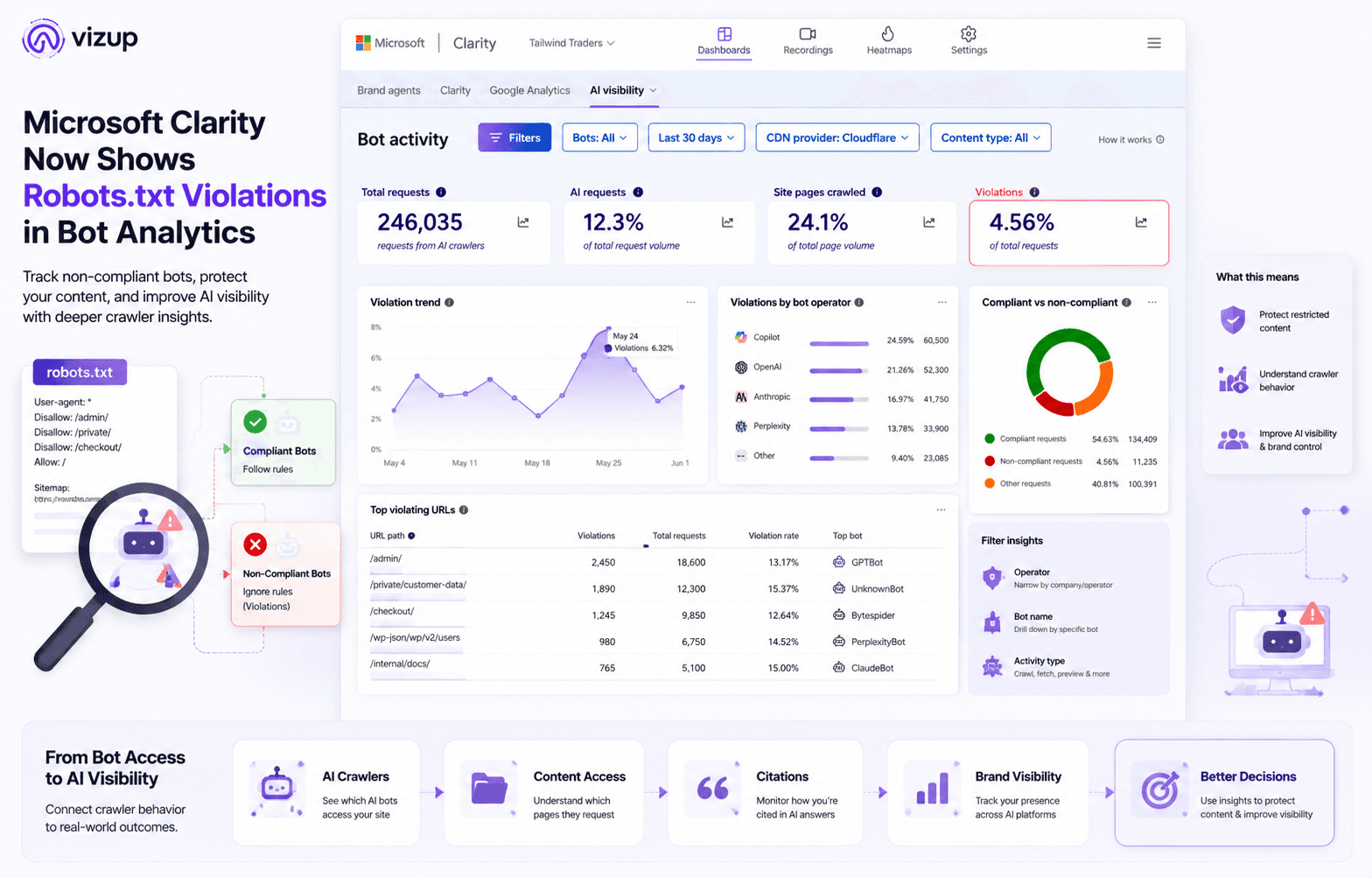
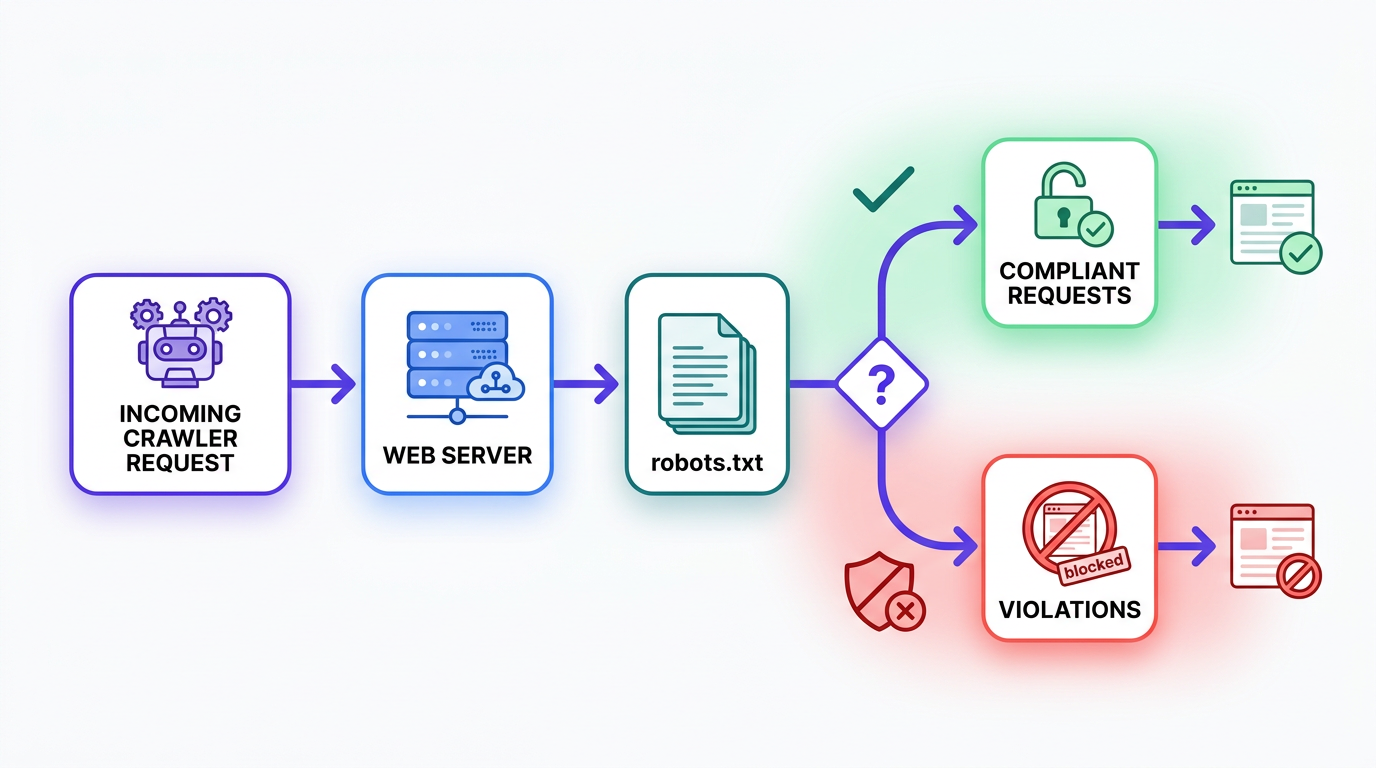
The update is straightforward: Clarity compares bot requests to your site's robots.txt rules and marks the ones that do not match. The point is to make compliance legible at a glance, not buried in raw logs. Until now, most analytics tools treated bot traffic as something to exclude so it would not pollute human behavior data. With AI crawlers from a long list of companies influencing discovery and summaries, that so-called noise has turned into a business signal.
Clarity rolls the information into its Bot Analytics view in a few concrete surfaces:
- A Violations Card: A single percentage showing how much bot traffic is hitting disallowed URLs, useful as a quick sanity check.
- A Violation Trendline: A time series that makes spikes obvious, so you can spot a new crawler or a recurring offender.
- Detailed Filtering: Breakdowns by operator (such as Google or OpenAI), by specific bot name (such as GPTBot), and by activity type.
- URL-Level Visibility: The exact paths bots are trying to reach, so you can tell whether they are probing premium pages, user profiles, or dusty admin directories.
How to Set Up Robots.txt Violation Tracking in Microsoft Clarity
Step-by-Step Guide to Check Robots.txt Violations in Clarity
Once your CDN or WordPress plugin is ready, the actual workflow is simple:
- Open your Microsoft Clarity project. Log in to Clarity and select the project where you want to monitor bot activity.
- Go to Project Settings. Open your project settings and look for the AI Visibility section.
- Connect a supported CDN. Ask a project admin to connect one of the supported CDN providers: Cloudflare, Fastly, or Amazon CloudFront. This gives Clarity access to server-side bot request data.
- Update the WordPress plugin, if needed. If your site runs on WordPress, make sure you are using the latest Microsoft Clarity plugin. Older versions may need an update before AI Bot Activity appears.
- Open the Bot Analytics dashboard. After setup, return to Clarity and open the Bot Analytics dashboard.
- Check the Violations card. Look for the Violations card. This shows what percentage of bot requests are hitting URLs disallowed by your
robots.txtfile. - Use filters to narrow the data. Filter by operator, bot name, and activity type. This helps you identify whether violations are coming from one crawler, one company, or a broader pattern.
- Review violating URLs and paths. Check which pages, folders, or content types bots are accessing. Pay close attention to restricted paths, gated sections, staging URLs, admin paths, or pages you intentionally blocked.
- Compare compliant and non-compliant requests over time. Use the trendline to see whether violations are increasing, decreasing, or spiking after a new bot appears.
- Decide the next action. If the issue is caused by a bad
robots.txtrule, update the file. If a crawler is repeatedly ignoring your rules, review CDN-level controls, WAF rules, or bot-blocking policies.
Why This Matters More Than You Think
Robots.txt has existed since 1994, and it has always been voluntary. It is a request, not a lock. For a long time, the biggest crawlers (Googlebot, for instance) generally respected it because it helps manage crawl budget and avoids hammering servers. The environment looks different now. The web is being vacuumed up by hundreds of bots for AI training, answer generation, and plain old competitive scraping, and plenty of them are not particularly polite.
Once you accept that, knowing who is ignoring your rules becomes less of a nerdy curiosity and more of a governance and security problem. Are AI crawlers requesting pages you marked as off-limits? Are competitors pulling pricing from paths you assumed were off-limits? Are bots chewing up server resources on junk URLs? Those questions land differently when you can point to specific operators and endpoints.
It also slots neatly into <a href="https://www.tryvizup.com/blog/the-complete-guide-to-ai-search-performance-analytics">AI search performance analytics</a>. You cannot manage AI visibility if you do not know what crawlers can access, or if they are wandering into areas you never meant to expose. This Clarity update ties the old technical SEO work of crawl management to the newer world of Answer Engine Optimization (AEO), where access and representation are tightly linked.
How to Get Started with Violation Tracking
The catch: you do not get this by dropping in the usual Clarity JavaScript tag and calling it a day. Robots.txt violations happen at the server request layer, and a browser script cannot see requests that never involve a human visitor. Clarity needs server-side data to make the call.
To turn it on, a project administrator has to connect a supported Content Delivery Network (CDN) from the AI Visibility section in your project settings. That integration lets Clarity analyze server-side logs, which are a far more reliable record of bot activity than anything running on the client side.
| Supported CDN | Primary Use Case | Setup Requirement |
|---|---|---|
| Cloudflare | Security, performance, and clearer visibility into bot traffic. | Admin access to connect via LogPush service. |
| Fastly | Edge cloud platform plus traffic monitoring. | Admin access to configure log streaming. |
| Amazon CloudFront | AWS-based content delivery and integration. | Admin access to set up log forwarding. |
| Supported CDNs for Microsoft Clarity's AI Bot Activity feature as of June 2026. |
WordPress sites get an easier path. If you are on the latest version of the Microsoft Clarity plugin, AI Bot Activity (including violation tracking) should already be on. If you are behind a version or two, updating the plugin is the first step.
What to Do With This New Data
Say you wire up your CDN and Clarity reports that 5% of bot requests are violating your rules. That number is only useful if it changes what you do next. A workable workflow looks like this:
- 1. Identify the Offenders: Filter by operator and bot name to see who is responsible for most violations. You are looking for a single loud source versus a broader pattern.
- 2. Review the Targets: Scan the violating URLs. Are bots poking at
/admin/? A directory with restricted paths, gated content, or sensitive site areas? Or a pile of broken links generating 404s? The destination is often the clue to intent. - 3. Check Your
robots.txt: Sometimes the problem is self-inflicted. Teams do block the wrong paths, including whole sections of a site, with one bad rule. Before you blame the crawler, make sure you know <a href="https://www.tryvizup.com/blog/how-to-check-if-ai-crawlers-are-blocked-by-robots-txt">how to check if AI crawlers are blocked</a> correctly. - 4. Decide on Enforcement: If a valuable crawler (like Googlebot) appears to be ignoring a directive, you may need to revisit the rule. If an unknown or hostile bot is repeatedly scraping sensitive areas, move from requests to enforcement. Use your CDN's firewall (WAF) rules to block by user-agent or IP address. Robots.txt asks; a WAF enforces.
- 5. Clean Up Your Analytics: Ongoing bot traffic can distort engagement reporting. Use the moment to prioritize <a href="https://www.tryvizup.com/blog/google-analytics-data-cleanup-a-2026-checklist-for-ga4">cleaning up analytics data</a> so the rest of your dashboards stay trustworthy.
This is not just housekeeping for the ops team. It is a strategic check on content protection, infrastructure costs, and how your brand shows up as AI-driven search becomes default behavior. It also pairs well with other Clarity additions, including <a href="https://www.tryvizup.com/blog/microsoft-clarity-ai-citations-is-now-available-for-everyone">Microsoft Clarity's AI Citations feature</a>, if you are trying to build a fuller picture of AI visibility from access to attribution.
Where Vizup Fits In
Clarity covers the first half of the story: raw bot access. It shows which crawlers are showing up and where they are trying to go. That answers the "who is knocking" question, but it does not tell you what the public ends up seeing.
Vizup is built for that second half. We track how your brand appears across AI answer engines, search, and other discovery surfaces. Clarity might show that GPTBot requested your pricing page 500 times; Vizup can show whether ChatGPT is now quoting those prices correctly, or citing a competitor instead. Used together, you get a line from crawler access to real-world outcomes: use Clarity to tune access rules, then use Vizup to see whether the changes improved visibility and accuracy where it matters.
Frequently Asked Questions
What counts as a robots.txt violation?
A robots.txt violation is when a bot requests a URL that your robots.txt file explicitly lists as disallowed. In plain terms, the crawler is ignoring your published instructions.
Does robots.txt actually block bots?
No. Robots.txt is guidance, not a firewall. Well-behaved crawlers like Googlebot generally comply, but malicious or sloppy bots can ignore it without consequence unless you enforce rules elsewhere.
Why does this matter so much for AI crawlers?
AI companies crawl the web to collect data for training and answer generation. Publishers need to know when those crawlers are reaching proprietary content, private user data, or other restricted areas despite being told not to. This feature makes that behavior visible.
Is this available to every Microsoft Clarity user?
It is available in Clarity, but access depends on connecting a supported CDN or using the latest WordPress plugin.
Can this replace server log analysis for bot activity?
Not really. Treat it as a strong companion to log work: a readable dashboard view of violations and trends. If you need a forensic audit or want to track bots that do not identify themselves clearly, direct server and CDN log analysis still sets the standard.
