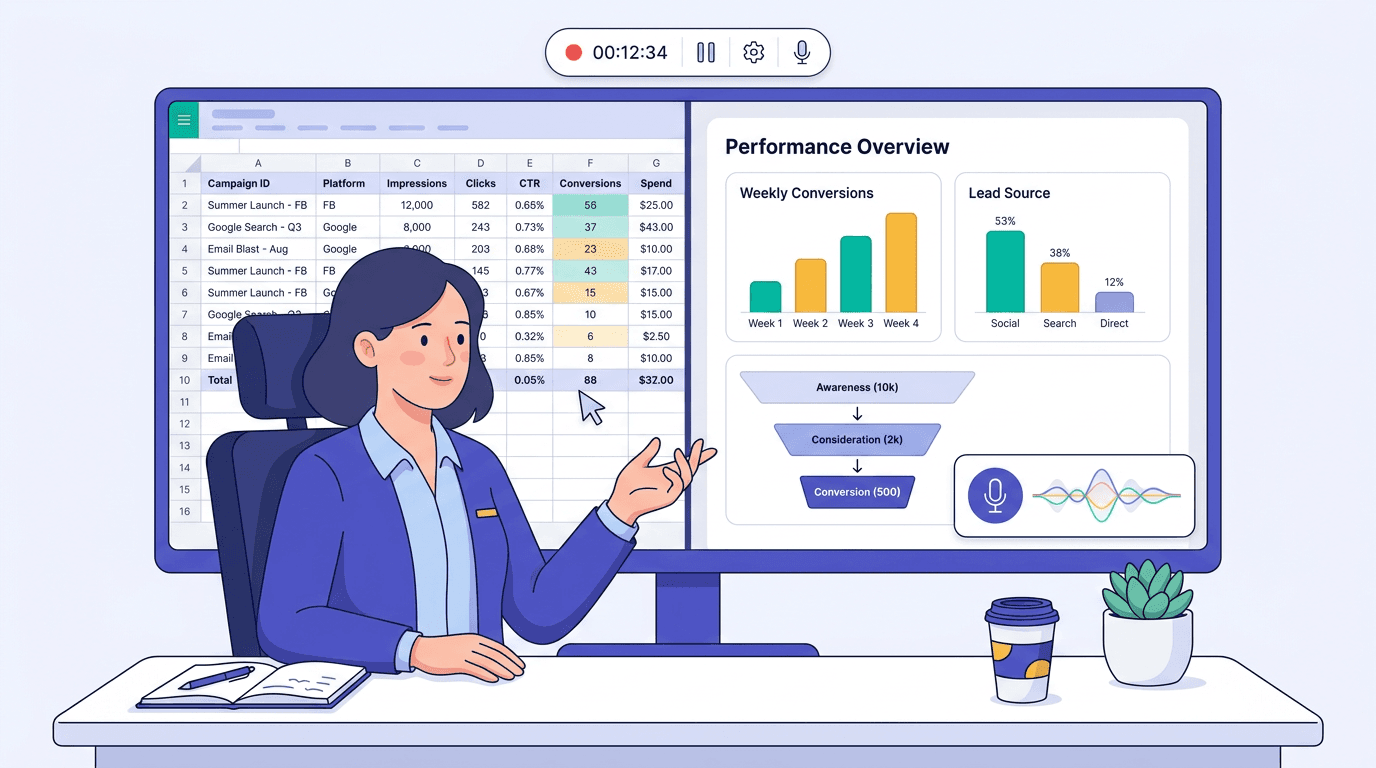
Imagine knocking out a repetitive marketing task once, while an AI sits quietly in the corner taking notes. That is the pitch for Claude record a skill, which launched July 21, 2026 inside Claude Cowork on the Claude desktop app. Instead of hand-writing structured instruction files, you run the workflow, talk through your decisions, and Claude turns the recording into a reusable skill that lands in your skill library.
For marketing ops teams stuck babysitting multi-step processes, this hits a sweet spot: too fiddly to explain cleanly in a prompt, not valuable enough to justify custom code. The quick rundown for teaching Claude by demonstration looks like this: 1. Set up a clean workspace and close anything sensitive. 2. Open Claude Cowork in the desktop app and choose Record a Skill from the plus menu. 3. Do the workflow on screen and narrate what you are doing and why. 4. Stop the recording and read what Claude generated. 5. Edit, name, and save the skill to your library. The sections below break down each step.
Before You Record: Prerequisites and Choosing the Right Task
You will need a Claude Pro, Max, or Team plan plus the Claude desktop app for Mac. Record a Skill lives inside Claude Cowork, and it is not available on the web version, Windows, or Free and Enterprise plans. The rollout was phased, so if it is missing for you, give it a few days and check again.
Some work is a great fit for ai workflow automation marketing, and some really is not. Look for tasks that are rule-based and repeatable: building a weekly performance report, reshaping a content brief into your standard template, bulk-renaming and filing creative assets, or running the same QA checklist before a campaign ships. Skip workflows where the decision logic swings wildly week to week. Claude learns the path you demonstrate, so consistency is what makes the skill dependable later.
Warning: Privacy warning: Claude cowork screen recording captures everything visible on your screen, including client account numbers, internal tool interfaces, colleague names, API keys, and credentials that happen to be open. Before you hit record, close every tab, window, and notification that contains sensitive material. Record in the cleanest environment you can create.
Step 1: Start the Claude Record a Skill Session
Open the Claude desktop app, start a new Cowork session, then hit the plus (+) menu and choose "Record a Skill." Claude will ask what to capture. Be picky: share only the screen or app window the workflow actually needs. If the job lives in a single browser tab or spreadsheet, record that window instead of your entire desktop.
Step 2: Perform and Narrate Your Marketing Workflow
Now you do the work you want to automate. Claude records the screen, cursor, and keystrokes, but your narration is what makes the output usable. Talk through your reasoning as you go. Do not just narrate the clicks; narrate the logic. "I am filtering to the last seven days because we only report the current week" gives Claude a rule it can reuse, instead of a brittle replay of your exact path.
A concrete example is the weekly analytics shuffle: pull traffic data from Google Analytics, drop it into a Google Sheet, then apply your standard formatting. As you go, call out the judgement calls, like which metrics you ignore and why. If you want to automate repetitive marketing tasks at scale, the narration becomes the real instruction set. Treat it the way you would train a new hire sitting next to you: explain the why, not just the where.
Tip: Tip: If you catch a wrong click mid-recording, say so and fix it. Something as blunt as "That was a mistake, I am going back and doing this instead" is useful signal. Claude leans on the voice commentary to infer intent, and a narrated correction beats a silent detour every time.
Step 3: Review, Refine, and Save Your Reusable AI Skill
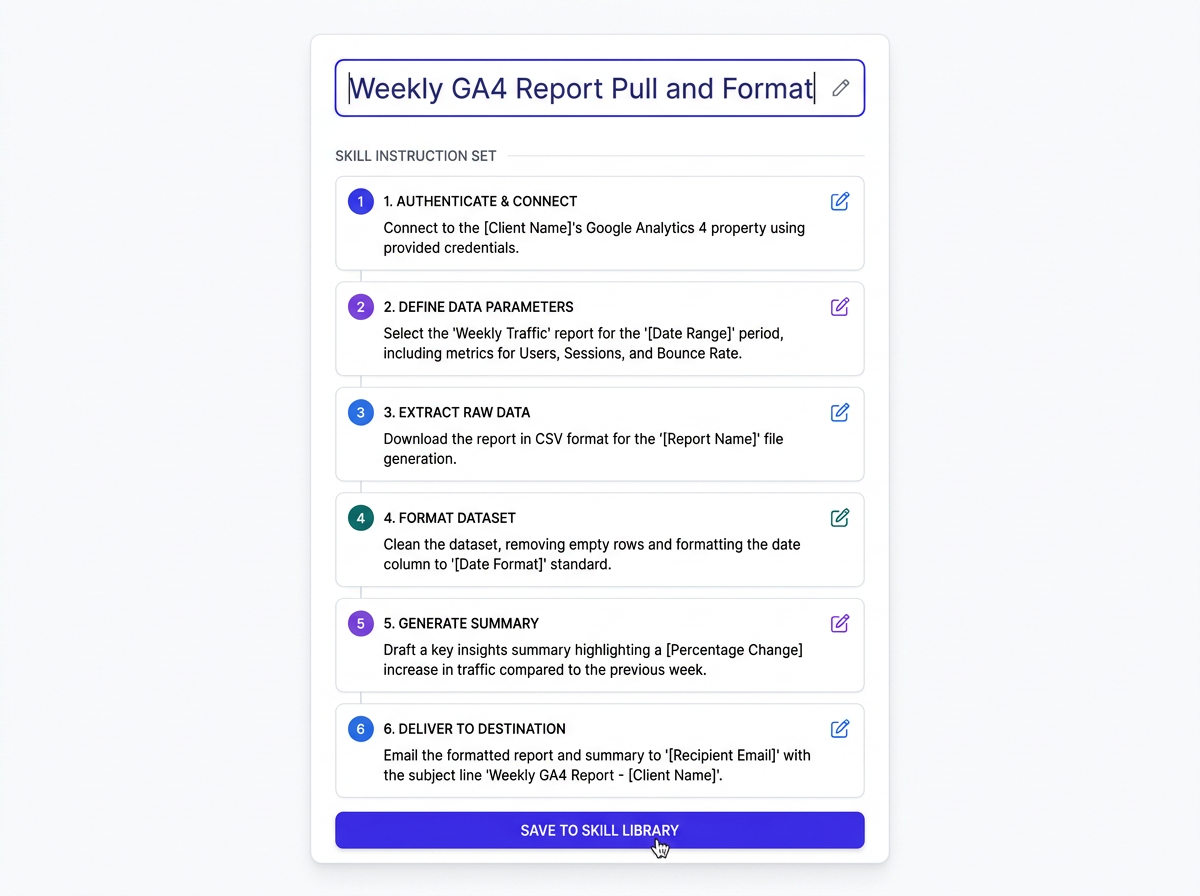
When you stop recording, Claude processes the video and audio and turns the demo into a structured, text-based set of steps. You get an editable draft before anything is saved. Do not skim it.
Things to check in the generated instructions:
- Are the steps in the right order and described accurately?
- Did Claude capture your conditional logic, or did it mostly transcribe the clicks?
- Are there any specific client names or dates that should be abstracted? Swap "Client X Weekly Report" for "[Client Name] Weekly Report" so the skill stays reusable.
- Do any steps depend on credentials or logins? Call those out so whoever runs the skill knows what access they need.
Name the skill like you expect to find it later: "Weekly GA4 Report Pull and Format" beats something vague like "Reporting." That label is how you and your team will call it in the future. Reusable ai skills only earn their keep when the name makes sense six weeks from now, not just the day you recorded it.
Manual Authoring vs. Record a Skill: A Quick Comparison
Before this, making a skill meant writing a structured markdown instruction file by hand. That works, but it is a real speed bump if you are not already comfortable with Claude's format. Here is the tradeoff:
| Dimension | Manual Skill Authoring (Old Way) | Record a Skill (New Way) |
|---|---|---|
| Technical barrier | High. You have to write structured markdown and understand Claude's instruction format. | Low. If someone can do the task, they can record it. |
| Speed of creation | Depends on the workflow's complexity and the amount of testing required. | Roughly the time it takes to run the task once, plus review. |
| Precision and control | High. Every instruction is intentional and explicitly written. | Medium. Claude interprets what you did, so the review step matters. |
| Best for... | Developers and technical ops staff building complex, branching logic. | Non-technical marketers automating rule-based, repeatable processes. |
| Both methods produce skills saved to the same library. Choose based on your team's technical comfort and the complexity of the workflow. |
Where Vizup Fits Into AI Marketing Workflows Claude's Record a Skill can help document and repeat a narrow task, but it is not a complete system for building organic visibility. Vizup works as an Organic Autopilot for modern discovery, helping brands monitor, create, optimise, publish, and learn across Search, Social, Communities, AI Answer Engines, and Local Discovery. It combines AI agents, human experts, and live SEO, pSEO, AEO, and GEO tools in one connected workflow. Paid ads are available as an amplification add-on when brands want to extend the reach of strong organic work.
A recorded skill may standardise one reporting or content-preparation task. Vizup provides the broader intelligence, execution, quality control, and learning system needed to turn those individual tasks into sustained organic growth. If your team is already using Claude for connected workflows, recorded skills get more valuable when you pair them with data integrations. The walkthrough on how to connect Google Search Console to Claude is a good companion for pulling live search data into Claude-driven processes.
Putting Your Skill to Work and Where It Fits in Your Stack
After you save a skill, you can call it from a new Cowork chat by referencing it. Claude loads the instructions and runs the workflow. The gap between a one-off recording and something you can trust is almost always the review step. Skills with clear narration, generalized placeholders, and a quick second test run tend to hold up. Skills saved straight from the first take usually need cleanup.
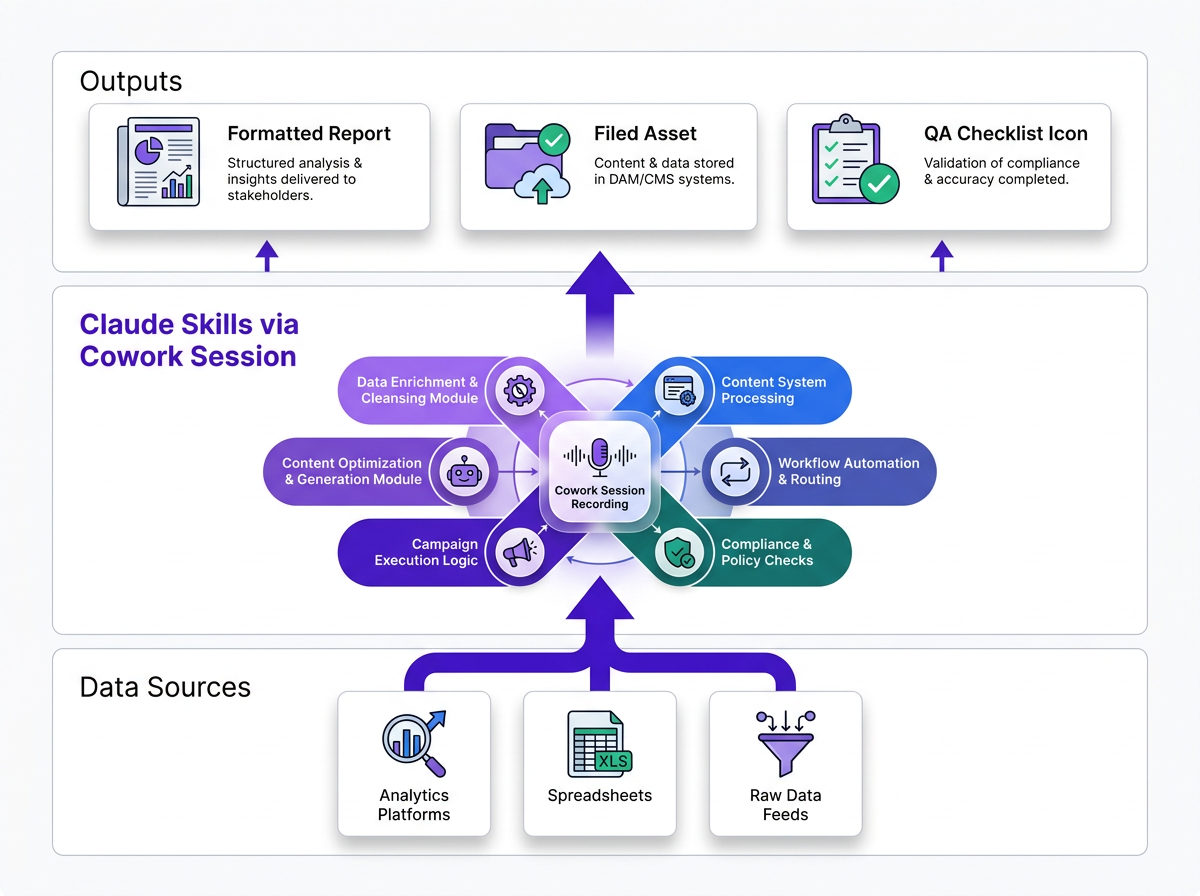
In a broader AI agent stack, recorded skills are the custom layer: the part that makes a general-purpose model behave like a specialist who knows your shop's process. If you are mapping where this fits, read it next to the piece on what an SEO agent actually does in 2026.
One caveat, because it matters: Record a Skill makes automation easier, but it does not replace judgement. A skill can run a QA checklist, but a human still has to decide whether the output passes. It is the same split you see in content governance automation: let AI handle the repeatable execution, and keep the calls that require context with people. Build your skill library around that line.
Frequently Asked Questions
What if I mess up while recording a skill for Claude?
Say the mistake out loud and correct it on screen. For example: "That was wrong, I am undoing that and doing this instead." Claude uses the narration to infer intent, so a called-out correction becomes part of the logic. After you stop recording, you can also edit the generated instructions before saving.
Can I share a recorded skill with my team members?
Saved skills appear under Customize > Skills. On Team and Enterprise plans, you can share a skill with specific colleagues or publish it to your organisation's directory, but an organisation owner must first enable the relevant sharing controls. Sharing is off by default.
Does Claude's Record a Skill work with any application on my computer?
You can record any app window or screen that is visible on your Mac desktop during the session. Claude captures what is on screen and where your cursor goes, regardless of which app is active. The practical limit is clarity: the more windows and context switching you cram into a recording, the messier the resulting instructions tend to be. Single-app workflows usually come out cleaner.
How does Record a Skill handle workflows that require logging into a service?
Do not enter credentials while recording. Claude captures everything shown on your screen, including what you type and say, so passwords, API keys, private conversations, and other sensitive information may be included in the recording. Anthropic says the video and audio are not retained after processing, but screenshots from the demonstration remain in the Cowork task until that task is deleted. Anyone running the finished skill will still need their own authorised access..
Should I record a short, specific skill or a long, multi-part workflow?
Start short and specific. A skill that does one job well, like pulling a weekly report or reformatting a content brief, is easier to review, test, and reuse than a 20-minute end-to-end recording. Once you trust how Claude interprets your demos, you can record longer workflows or chain smaller skills together. Shorter recordings also make it easier to spot and fix problems in the generated instructions. Anthropic currently limits each recording to approximately 10 minutes, so longer processes may need to be divided into smaller skills.
