Planning your Q3 marketing strategy on flawed Google Analytics 4 data is like building a house on sand. Misconfigured events, spam traffic, and tracking errors lead to misallocated budgets, missed opportunities, and reports that erode stakeholder trust. A thorough Google Analytics data cleanup is the essential fix. For marketing managers, analysts, and operations teams preparing for 2026 reporting, this process ensures your insights rest on a bedrock of accuracy, not guesswork.
Google Analytics data cleanup is the process of auditing and correcting your GA4 property to eliminate tracking errors, bot traffic, and misconfigured events that skew reporting. Done well, it transforms a noisy, unreliable dataset into a powerful asset for strategic planning. The checklist below walks you through each step to get your property Q3-ready, from initial audit to final validation.
Summary of the steps covered in this checklist:
- Audit your GA4 property configuration and baseline metrics.
- Identify and fix tracking errors in Google Tag Manager.
- Filter spam and bot traffic with layered data filters.
- Deduplicate and standardize events and custom definitions.
- Annotate changes, document fixes, and validate with a Q3-ready checklist.
What You'll Need Before You Start
Before diving into your Google Analytics data cleanup, gather the right access and reference materials. This initial setup prevents delays and ensures you can validate every fix against a known baseline. Below are the core requirements.
- Access: You will need Editor or Administrator access to your GA4 property and corresponding access to your Google Tag Manager container.
- Baseline: Have a recent Vizup report or a GA4 Exploration open. This will serve as your 'before' snapshot to validate the impact of your cleanup.
- Reference: Bookmark Google's official GA4 data quality documentation. You'll consult it to verify best practices.
- Time: Block 2 to 3 hours for the audit and fixes. Remember, GA4 data can take 24 to 48 hours to fully process changes, so plan a validation window before your Q3 reporting lock-in date.
Tip: Run this checklist before your Q3 reporting lock-in date. Dirty data compounds over time and becomes exponentially harder to fix retroactively.
Why Dirty GA4 Data Ruins Q3 Reporting
Poor data quality directly impacts revenue and strategy. Industry estimates place the average cost of poor data quality to organizations at nearly $13 million annually Gartner, 2025. In analytics, this cost shows up as flawed strategy. A single misconfigured event in April can corrupt three months of conversion data by July, making your year-over-year reports meaningless. That is why prioritizing clean analytics data for 2026 preparation is critical right now, not after Q3 has already started.
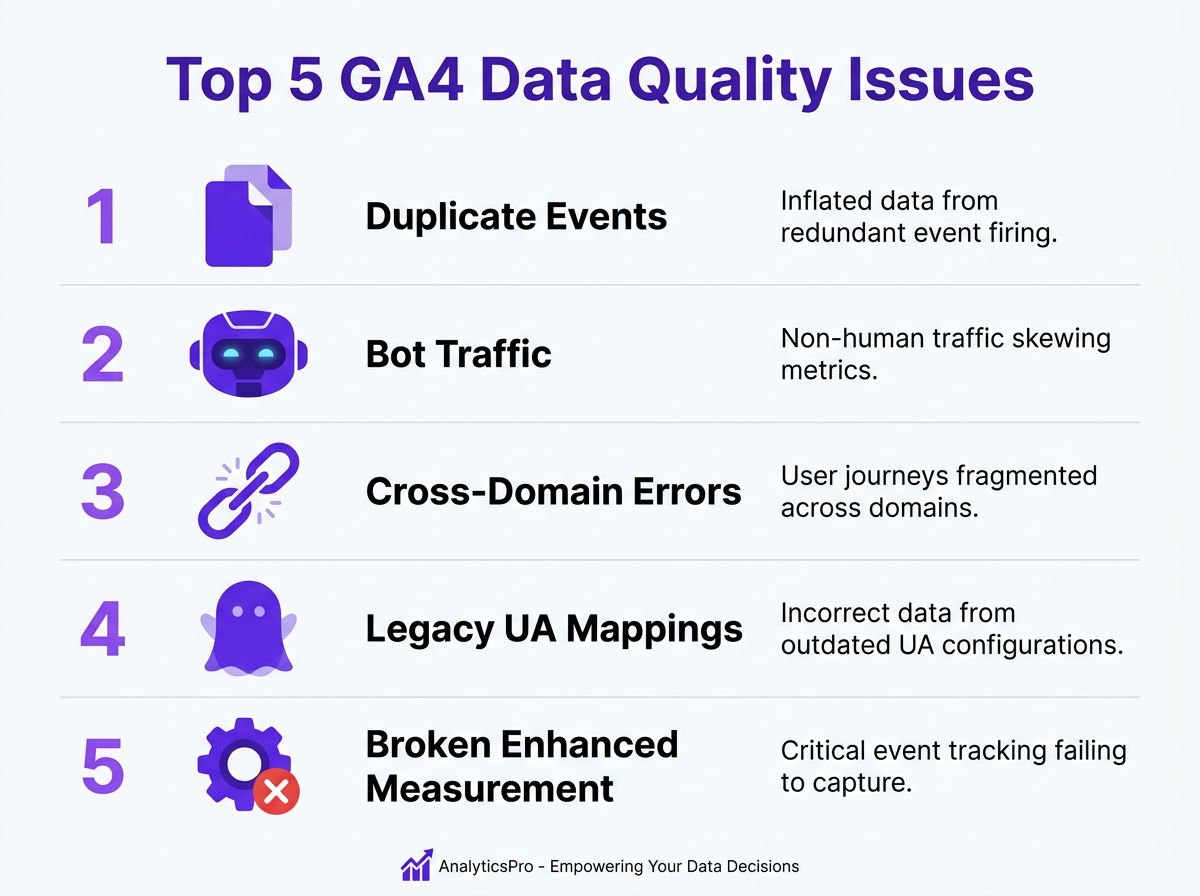
The five most common GA4 data quality issues are:
- Duplicate Events: Often caused by having both a hardcoded GA4 tag and a Google Tag Manager (GTM) tag firing on the same page, inflating all your metrics.
- Unfiltered Bot and Spam Traffic: Sudden traffic spikes from unknown referral sources that pollute your reports with junk data.
- Misconfigured Cross-Domain Tracking: Users moving between your main site and a subdomain (like a blog or shop) are incorrectly counted as new sessions, breaking user journey analysis.
- Leftover Universal Analytics Mappings: Many properties migrated from Universal Analytics still carry old, unmapped goals that create confusion alongside native GA4 events.
- Broken Enhanced Measurement: Default settings for tracking outbound clicks, scrolls, and file downloads can be disabled or misconfigured, leaving gaps in engagement data.
You can spot these issues by looking for sudden traffic spikes from odd referral domains, conversion rates that don't align with your CRM or sales data, and event counts that mysteriously doubled after a website update. If any of these patterns look familiar, your property needs attention before Q3 reporting begins.
Step 1: Run a Full GA4 Property Audit
A comprehensive GA4 property audit is the first step in any Google Analytics data cleanup. It establishes a baseline for your technical health and surfaces issues you may not know exist. Start in the Admin panel and systematically work through key settings: Data Streams, Enhanced Measurement, Data Filters, and Channel Groupings. Cross-reference what you find with your intended setup. This process often reveals simple but high-impact errors that have been silently degrading your data for months.
A surprisingly common error, even in 2026, is a mismatched Measurement ID. Verify that the ID in your Data Stream (starting with 'G-') matches the one deployed in your Google Tag Manager configuration tag or your website's code. As part of your GA4 data quality checklist, confirm that all key business actions (e.g., 'generate_lead', 'purchase') are marked as conversion events in the Events menu. Also check GTM to see if any legacy Universal Analytics tags are still firing alongside your GA4 tags. These remnants cause data conflicts and inflate session counts, making your GA4 audit guide incomplete if you skip this step.
Tip: Pro tip: Export your current event list and conversion settings before making changes. This gives you a rollback reference if something breaks during the audit.
Step 2: Fix GA4 Tracking Errors in Your Tag Configuration
To fix GA4 tracking errors, you need to systematically identify and resolve issues within your tag management setup. Google Tag Manager's Preview and Debug mode is the fastest diagnostic tool available. Open it, navigate your site, and watch which tags fire on each page. You're looking for tags that fire twice, on the wrong pages, or not at all.
In 2026, common culprits include duplicate GA4 configuration tags left over after a CMS migration, scroll-depth triggers that conflict with single-page application routing, and misconfigurations in Consent Mode v2 that silently block data collection from unconsented users. For each broken tag you identify, adjust the trigger condition, test it again in Preview mode, and publish a new GTM container version with a descriptive note about the fix. Keeping a tight feedback loop between diagnosis and resolution prevents errors from stacking up.
Pay special attention to Consent Mode v2 configurations. If your consent banner implementation is incorrect, GA4 may silently drop a significant portion of your traffic data. Verify that the default consent state and update commands are firing in the correct sequence by checking the Consent tab in GTM's Preview mode.
Step 3: Set Up Spam Filters and Exclude Bot Traffic
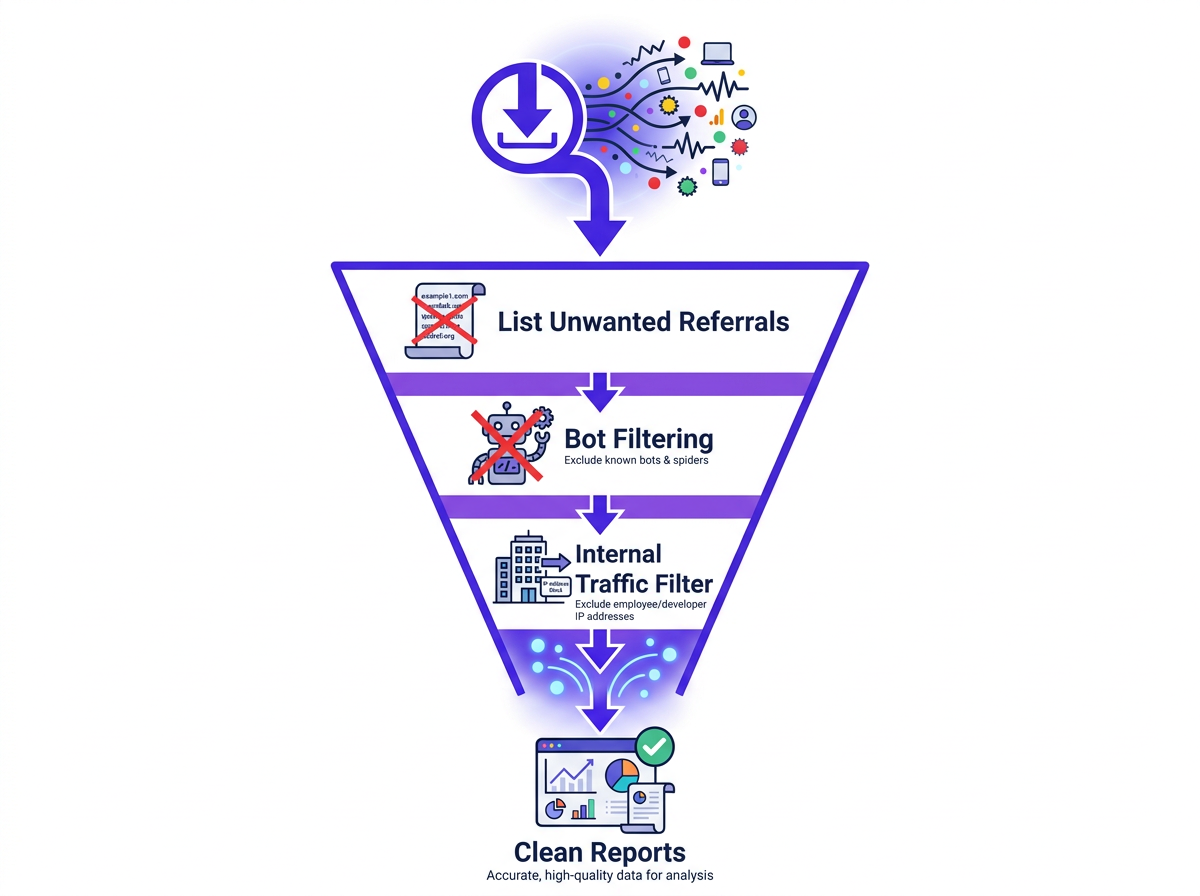
An effective GA4 spam filter setup is crucial for protecting the integrity of your dataset and ensuring reports reflect genuine user activity. Start by navigating to Admin, then Data Streams, then Configure Tag Settings, then List Unwanted Referrals. Add any known spam domains you've identified in your reports. This acts as a blocklist for referral spam and prevents those sources from inflating your traffic numbers.
Next, enable the built-in bot filtering. As of early 2026, this setting is located under Admin, then Data Settings, then Data Filters. Ensure the Internal Traffic Filter is active to exclude traffic from your own office IPs. This is also where you can create new data filters for more advanced segmentation, such as isolating traffic from specific geographic regions or network ranges that consistently produce low-quality sessions.
Warning: Do not delete historical data to fix tracking errors. Use data filters and annotations instead to avoid breaking year-over-year comparisons.
When creating a new data filter, always use the 'Testing' state first. This allows you to see the filter's impact in real-time reports without permanently altering your data. After 24 to 48 hours of validation, switch it to 'Active'. Activating a filter without testing can lead to accidentally excluding legitimate traffic, a mistake that is impossible to reverse once data is lost.
Step 4: Deduplicate Events and Clean Up Custom Definitions
Event deduplication and custom definition cleanup are essential maintenance tasks for a streamlined GA4 property. In GA4 Explorations, pull a report of your event names and sort by count. Look for similar names that fragment your data, such as 'form_submission', 'Form Submission', and 'form_submit'. These inconsistencies turn reporting into a guessing game. Standardize your naming convention (Google recommends lowercase with underscores, e.g., 'add_to_cart') and update your tags in GTM. For historical data, use GA4's 'Modify Events' feature to remap old, inconsistent names to your new canonical event name.
While you're cleaning up, audit your custom dimensions and metrics under Admin, then Custom definitions. You are limited to 50 event-scoped custom dimensions. Delete any that are no longer used or were created for testing. Dead definitions prevent you from creating new, more relevant ones. This is also a good time to review how you might use a no-code ETL solution like Vizup to manage data transformations outside of GA4, keeping your property lean and your reporting pipelines flexible.
A practical approach: create a spreadsheet mapping every custom event name, its purpose, the GTM tag that fires it, and whether it is still active. This inventory makes future quarterly audits significantly faster and gives new team members immediate context on your tracking architecture.
Step 5: Annotate Your Property and Document Every Change
Proper documentation provides context for data shifts, turning a potentially confusing report into a clear historical record. While GA4 brought back a form of annotations in 2025, many teams find it useful to maintain a more detailed external changelog. A simple Google Sheet or a project page in Vizup Prompts can serve this purpose well. Link this document in your GA4 property description field for easy access by anyone on the team.
For every change you make during this cleanup, record what changed, when it changed, and why. When you or a colleague compares Q3 2026 data to Q3 2025, this log will be invaluable. It explains whether a sudden drop in referral traffic was due to a new spam filter or a genuine issue, providing crucial context for your accurate Q3 insights. Without this documentation, future analysts are left guessing, and guessing leads to bad decisions.
Info: GA4 replaced Universal Analytics in July 2023. Many properties still carry over misconfigured events and unmapped goals from the migration, making a periodic cleanup non-negotiable.
Your Q3-Ready Checklist: 12 Items to Complete
A final validation checklist ensures no steps were missed and confirms your GA4 data cleanup was successful. Use this as a quick reference you can reuse each quarter for ongoing data governance.
- Measurement ID: Verified the correct 'G-' ID is deployed across all pages.
- GA4 Config Tag: Confirmed only one GA4 configuration tag fires per page.
- Enhanced Measurement: Ensured default event tracking (scrolls, outbound clicks) is active and correct.
- Conversion Events: Marked all key business goals as conversions in the Events menu.
- Referral Exclusions: Added internal domains and payment gateways to the referral exclusion list.
- Unwanted Referrals: Populated the 'List Unwanted Referrals' with known spam domains.
- Bot Filtering: Confirmed GA4's built-in bot filtering is enabled.
- Internal IP Filter: Activated a data filter to exclude traffic from office and remote employee IPs.
- Event Naming: Standardized all custom event names to a consistent convention (e.g., lowercase_with_underscores).
- Custom Definitions: Audited and removed unused custom dimensions and metrics.
- Annotations: Documented the date and scope of the cleanup using GA4's annotation feature.
- Changelog: Updated an external changelog with detailed notes on all fixes and changes.
Next Steps: From Clean Data to Confident Decisions
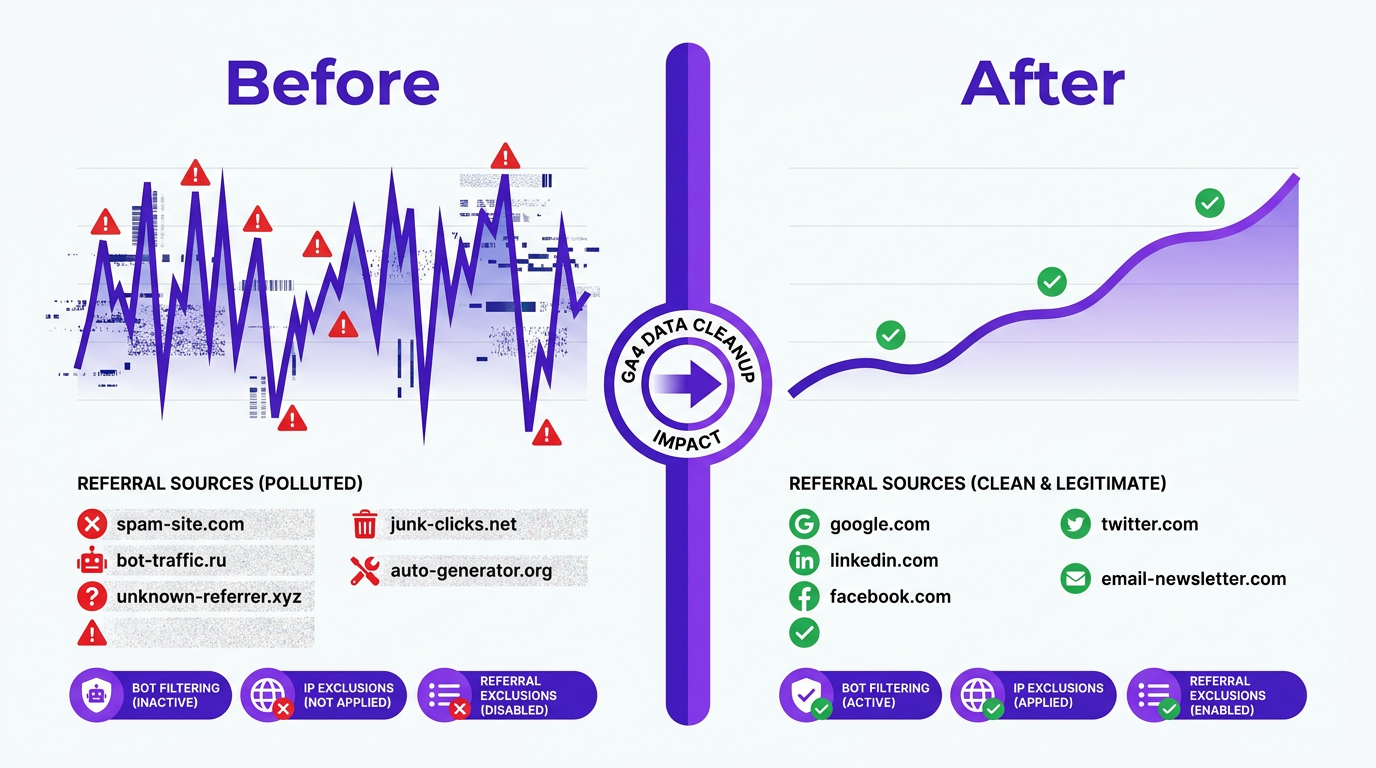
Completing a Google Analytics data cleanup transforms your GA4 property from a liability into a strategic asset. You have audited, fixed, filtered, and documented your way to a reliable data source. Your GA4 property is now primed to deliver trustworthy insights for Q3 and Q4 planning. To maintain this state, schedule a recurring quarterly audit on your calendar. The same issues (spam referrals, duplicate tags, stale custom definitions) creep back in quickly if left unmonitored.
With clean data as your foundation, you can move on to more advanced analysis. Explore building automated dashboards with our Google March 2026 spam update breakdown or ensure your on-page signals are just as clean by testing your structured data. For continuous peace of mind, explore how Vizup's analytics features help you monitor data quality automatically, so the next quarterly cleanup takes minutes instead of hours.
Frequently Asked Questions
How often should I perform a Google Analytics data cleanup?
A comprehensive Google Analytics data cleanup should be performed at least semi-annually. A lighter review focusing on spam filters and event validation is recommended quarterly, ideally before major reporting periods to ensure data integrity.
Can I remove spam traffic from GA4 without deleting historical data?
Yes. GA4 does not allow for the deletion of historically processed data. To manage this, use Segments within the Explore section to retroactively filter out spam from your analysis. Data filters in the Admin section will only clean data from the moment they are activated and will not apply to past data.
What is the fastest way to fix GA4 tracking errors caused by duplicate tags?
Use Google Tag Manager's Preview mode to see if multiple GA4 configuration tags are firing on a single page load. The standard fix is to consolidate tracking by removing one of the duplicate tags, which often means keeping the GTM version and deleting any hardcoded GA4 tags from your website's theme or source files.
How long does it take for GA4 data filters to start working after activation?
Data filters begin processing data immediately after being set to 'Active'. However, it can take 24 to 48 hours for the changes to be fully reflected across all standard reports. These filters are not retroactive and will not alter historical data.
Does GA4 automatically filter bot traffic, or do I need to set it up manually?
GA4 has a built-in feature to automatically exclude traffic from known bots and spiders, which is enabled by default. This relies on Google's internal lists and the IAB/ABC International Spiders & Bots List. However, this does not catch all spam. Manually setting up a GA4 spam filter using the 'List Unwanted Referrals' feature and custom data filters is a necessary additional step for maintaining high data quality.
