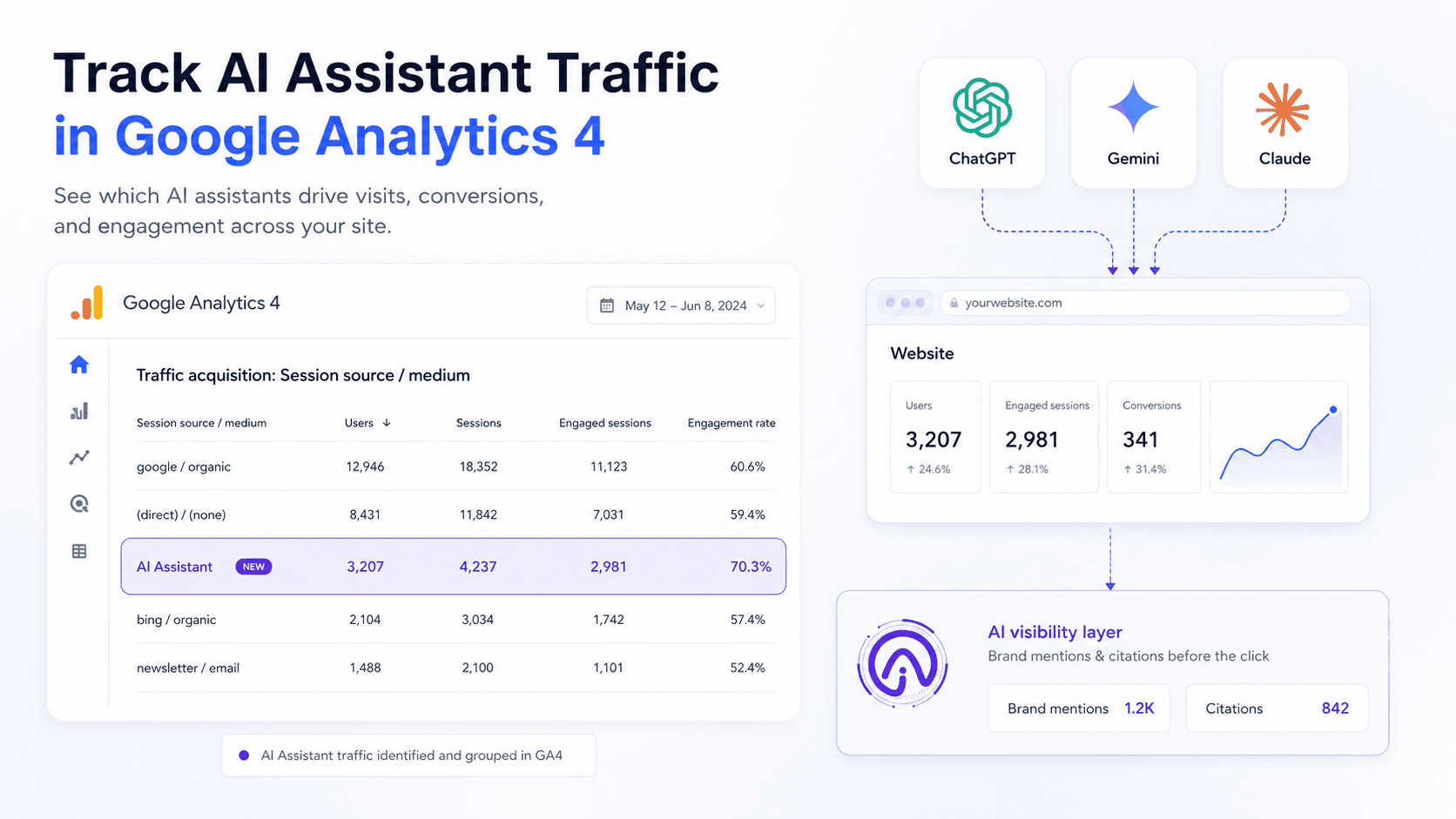
AI chatbots are starting to behave like search engines, and they’re already sending measurable sessions to real sites. Since early 2025, the question from most marketing and analytics teams has been simple: how do you separate that traffic from everything else? As of May 13, 2026, GA4 finally has a native answer. The GA4 AI Assistant channel is a new default channel group that buckets sessions from recognized assistants (ChatGPT, Gemini, Claude, and others) under the medium value ai-assistant, no custom work required. You’ll find it under Reports → Acquisition → Traffic Acquisition → Session default channel group → AI Assistant.
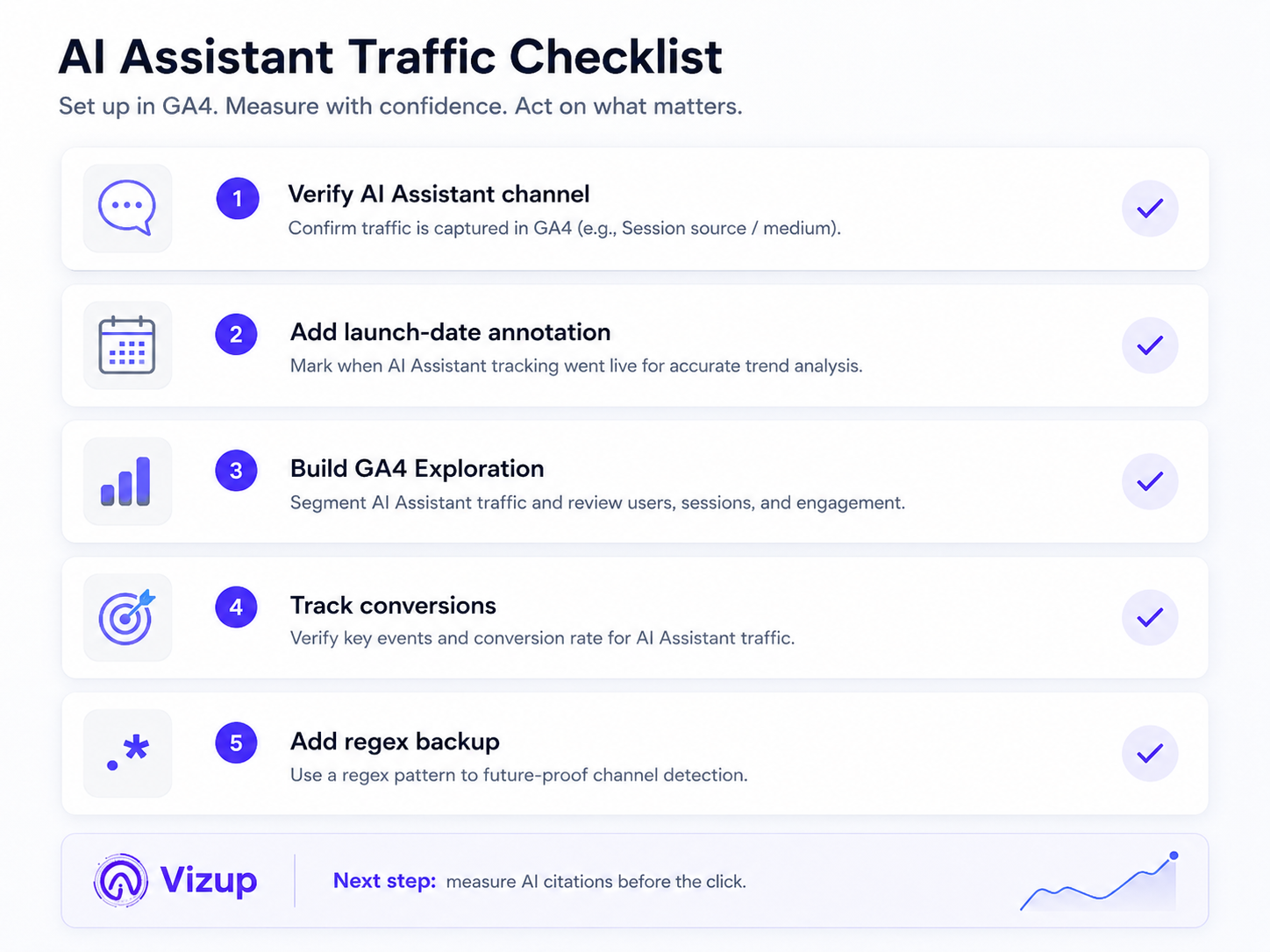
This isn’t just another row in a report. It’s Google admitting that AI-driven referrals deserve their own lane, instead of getting lost in the noisy mix of “Referral” and “Direct” the way they used to. Treating it as optional is the kind of mistake teams made with mobile a decade ago. Here’s the five-step process to get your GA4 AI Assistant reporting under control:
-
- Verify the channel is active in your Traffic Acquisition reports.
-
- Create an annotation to mark the May 13, 2026 launch date.
-
- Build a dedicated Exploration report for deep analysis of AI traffic.
-
- Set conversion events to isolate AI Assistant traffic for goal tracking.
-
- Add a custom regex backup channel group to future-proof your setup.
What Is the GA4 AI Assistant Channel?
The GA4 AI Assistant channel is a new line item inside GA4’s default channel group, designed to automatically identify sessions referred by recognized AI chatbots. When GA4 sees a supported assistant as the referrer, it assigns the medium ai-assistant and routes the session into this dedicated group (Google’s May 13, 2026 Analytics update). Before this change, tracking ChatGPT traffic in GA4 typically meant building custom channel groups with regex rules, and even then, plenty of sessions still ended up quietly filed under “Referral” or “Direct” (Search Engine Journal, 2026).
Google has explicitly called out ChatGPT, Gemini, and Claude as recognized sources, but it hasn’t published a full list. What matters operationally is that GA4 now treats AI as a first-class category in the default channel group, right alongside Organic Search, Paid Search, and Direct. If you own GA4 AI traffic tracking, that translates to fewer brittle rules to maintain and fewer hours spent explaining why “Direct” suddenly looks weird.
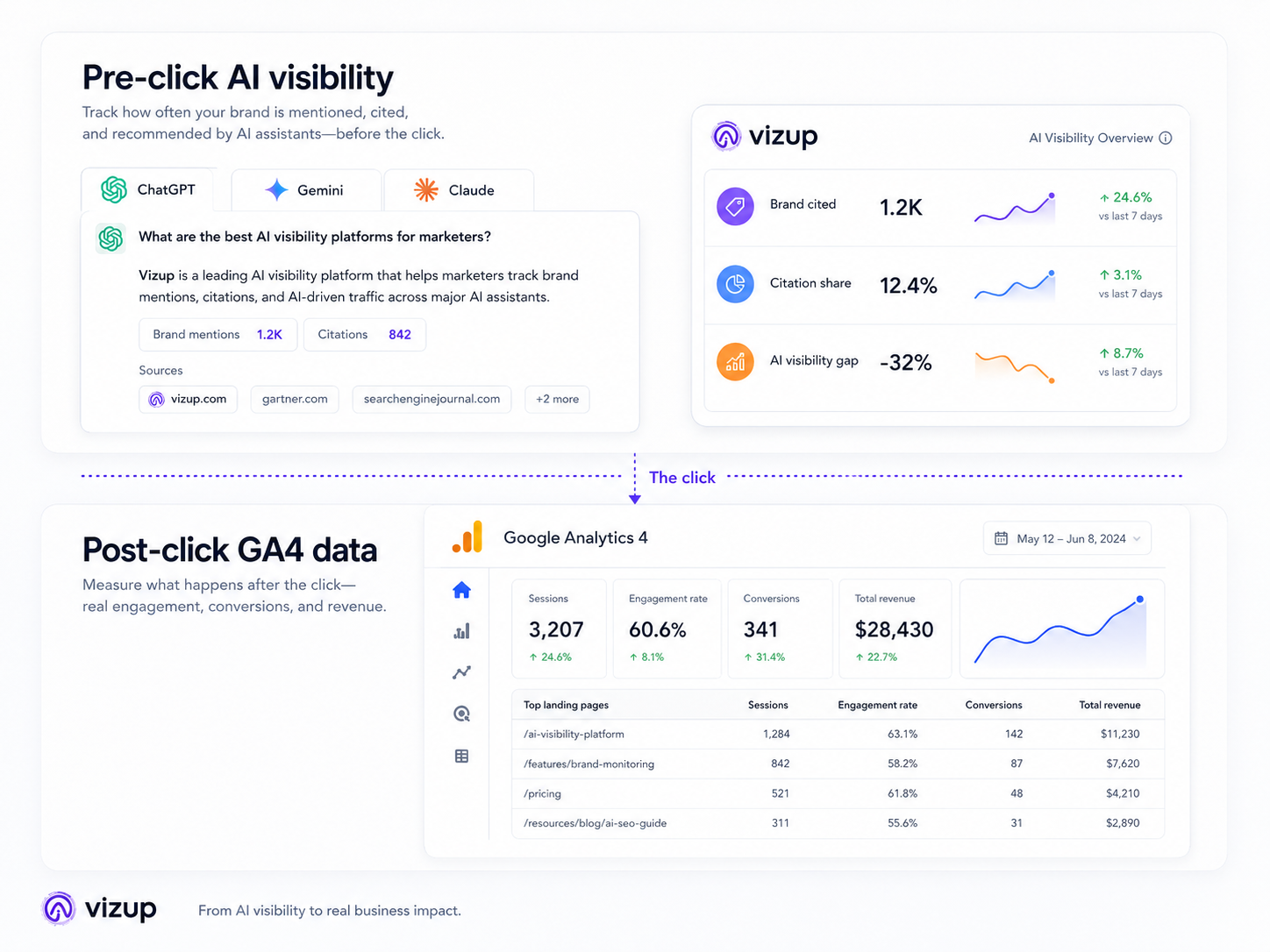
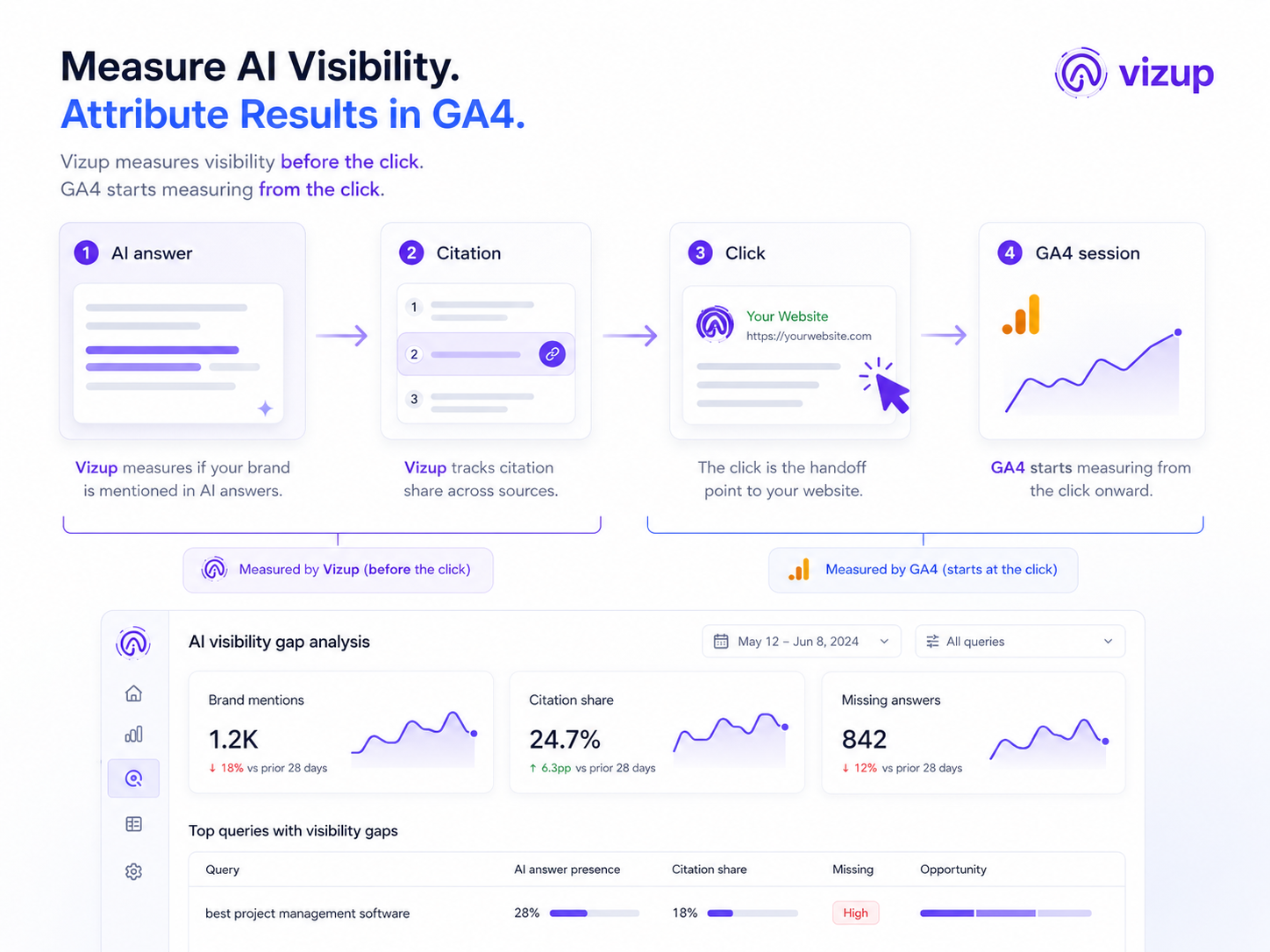
There’s a hard boundary here: GA4 starts counting once the click happens. It can tell you what users did after arriving from an AI chatbot, but it can’t show how often your brand showed up in AI answers when nobody clicked through. That pre-click visibility layer is where tools like Vizup come in, tracking brand presence across answer engines before GA4 ever sees a session.
Step 1: Find and Verify Your AI Assistant Traffic
Open Google Analytics and go to Reports → Acquisition → Traffic Acquisition. Set the primary dimension to Session default channel group. Then scan the table (or use search) for “AI Assistant.” If it’s there, your property is already collecting sessions with the ai-assistant medium.
Info: Data for the AI Assistant channel only exists from May 13, 2026 onward. If you see no rows, it likely means your site has not yet received referral traffic from a recognized AI chatbot with a valid referrer header. This is not a configuration error.
After you’ve confirmed the channel is showing up, add an annotation to your GA4 property (or at least your team’s tracking doc) for May 13, 2026. That date marker saves the next analyst from treating a brand-new channel as a sudden performance spike or a tagging issue. If you’re already cleaning up your Google Analytics data, this fits neatly into the same hygiene pass.
Step 2: Build an Exploration Report and Analyze the Data
Traffic Acquisition is fine for a quick read, but it won’t answer the questions stakeholders actually ask. If you need to compare AI Assistant against Organic Search or Direct, or settle debates like “does AI traffic convert better?”, build a dedicated Exploration.
Building Your AI Traffic Dashboard in Explorations
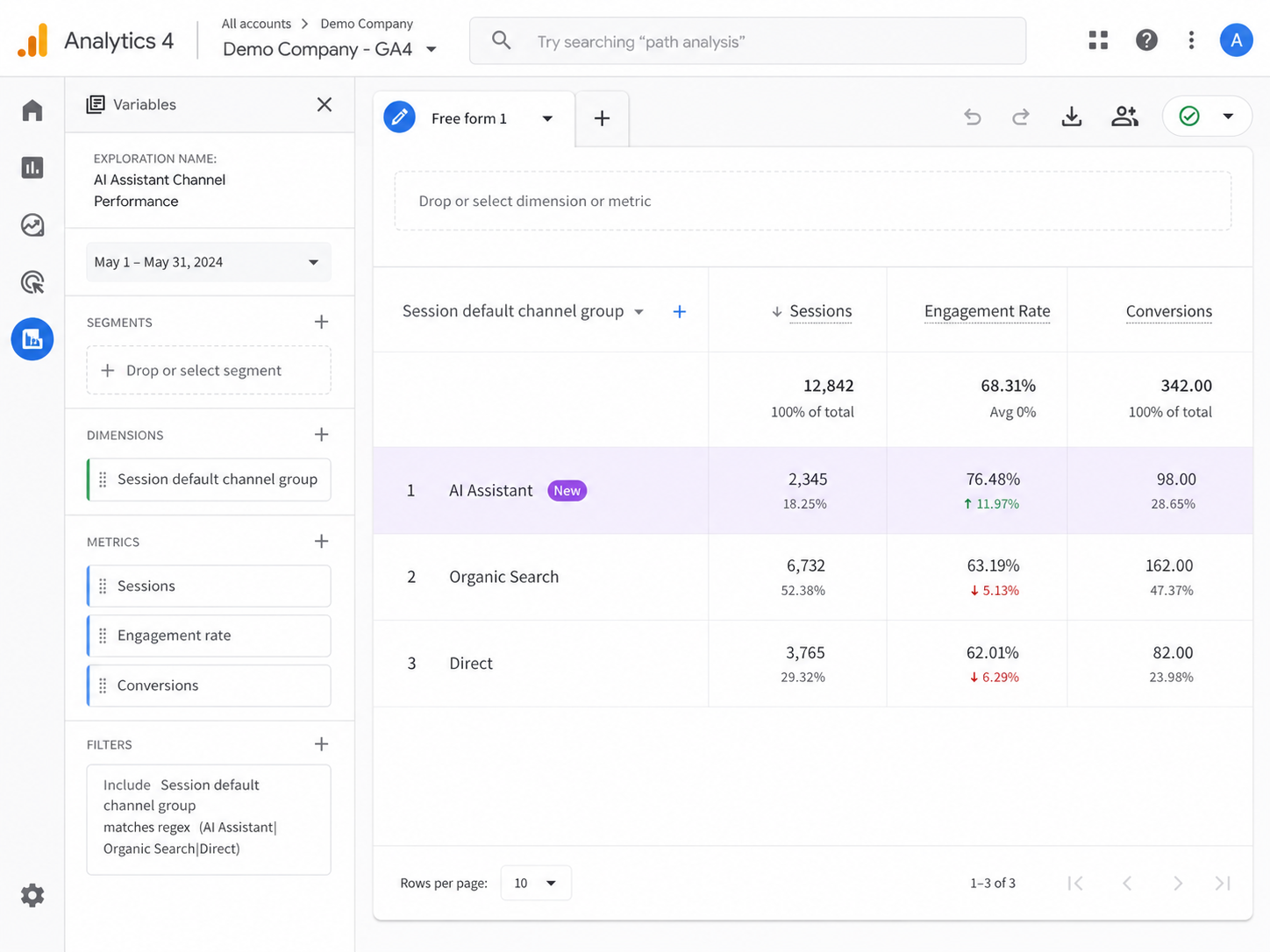
Create a Free-form Exploration with these settings:
- Dimensions: Session default channel group, Session source / medium, Landing page + query string
- Metrics: Sessions, Engaged sessions, Conversions, Total users, Average session duration
- Filter: Set Session default channel group to include only 'AI Assistant', 'Organic Search', and 'Direct' for a focused comparison
Drop “Session default channel group” into Rows, and place your metrics in Values. That table gives you a side-by-side view of AI Assistant traffic versus the channels you’ve been living in for years. A simplified example looks like this:
| Channel | Sessions | Engagement Rate | Conversions | Avg. Session Duration |
|---|---|---|---|---|
| AI Assistant | 1,240 | 72% | 38 | 3m 12s |
| Organic Search | 48,600 | 58% | 412 | 2m 05s |
| Direct | 22,100 | 45% | 189 | 1m 48s |
| Hypothetical data. AI Assistant traffic often shows higher engagement rates due to the intent-rich nature of chatbot queries. |
What tends to jump out in early reads is the shape of the traffic: lower volume, but stronger engagement and longer sessions. People coming from an assistant usually arrive pre-qualified, they’ve already asked a specific question and gotten pointed toward an answer. That’s why this channel matters for RevOps teams measuring conversion quality, not raw sessions. To get more granular, pivot on “Session source / medium” to see whether ChatGPT, Gemini, or Claude is driving the sessions that actually matter.
Step 3: Set Conversion Events for AI Assistant Traffic
Seeing AI traffic is table stakes; proving it converts is where the budget conversations start. In GA4, head to Admin → Events and make sure your core conversion events (form submits, purchases, sign-ups) are marked as conversions. Then go back to the Exploration from Step 2 and add those conversion events as metrics. You’ll end up with a clean channel-by-channel readout that answers the question leadership will ask anyway: “Is the AI Assistant channel worth optimizing for?”
Step 4: Create a Custom Channel Group as a Regex Backup
You can’t edit Google’s default channel groups, and Google won’t recognize every new assistant the moment it ships. When an AI tool isn’t on the recognized list, its sessions typically fall back into “Referral” or “Direct.” A custom channel group gives you a safety net. Go to Admin → Data display → Channel groups → Create new channel group. Create a channel named “AI Assistants (Custom),” then define it with a regex rule on the source dimension:
Tip: Regex pattern:
chatgpt|openai|gemini|claude|anthropic|perplexity|copilotapplied to the Source dimension. Update this pattern quarterly as new AI tools gain traction. Resources like Analytics Mania documented this approach before Google's official update and remain useful for edge cases.
Run the custom group alongside the default one. It’s there to catch the long tail, new assistants, odd referrers, and anything Google hasn’t formally folded into “AI Assistant” yet, so your GA4 AI referral traffic analysis doesn’t regress the moment the ecosystem shifts.
The Gap in Your Data: What GA4 Cannot Tell You
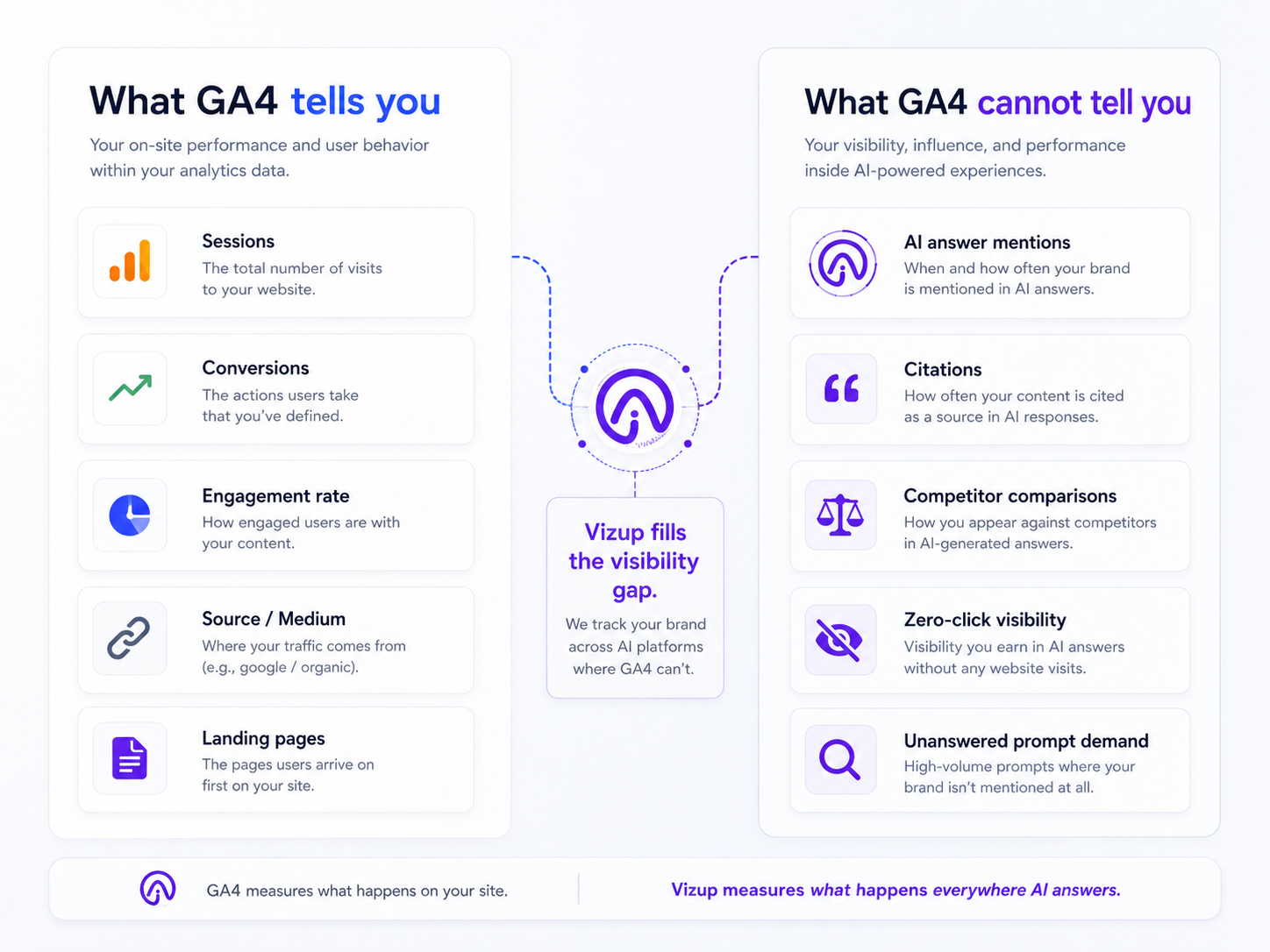
GA4 is built for sessions and clicks, which means the AI Assistant channel comes with a built-in blind spot. It only measures the traffic you actually receive. Even with the cleanest Exploration setup, GA4 won’t answer questions like:
- How many times was your brand mentioned in an AI-generated answer without producing a click?
- Which competitors are being cited in the same conversations where your brand is absent?
- What questions are users asking that lead to citations of your content, or your competitor's content?
That’s the pre-click visibility gap. GA4 shows the click; Vizup shows the answer. If you’ve ever had to explain why traffic metrics can be misleading without any visibility context, this is the missing piece. When your brand isn’t being cited in AI answers, there’s nothing for GA4 to measure, because the click never happens.
5-Step Setup Checklist
Quick reference for your GA4 AI Assistant channel configuration:
- ✅ Check channel live: Confirm 'AI Assistant' appears in Reports → Acquisition → Traffic Acquisition.
- ✅ Set annotation: Mark May 13, 2026 as the channel launch date.
- ✅ Build Exploration: Create a Free-form report with channel, source/medium, and landing page dimensions.
- ✅ Set conversion events: Toggle key conversions on and add them as Exploration metrics.
- ✅ Add custom regex backup: Create a custom channel group with regex matching for AI sources not yet in Google's default list.
Common Troubleshooting Issues
No 'AI Assistant' row in your reports. GA4 only shows the channel once it sees a valid referrer header from a recognized assistant. Some mobile apps and copied links drop referrer data entirely, which pushes those sessions into “Direct.” That’s a platform constraint, not a setup mistake.
Historical data has not changed. The default channel group update doesn’t rewrite the past. Anything before May 13, 2026 keeps its original channel classification. Practically, that means year-over-year comparisons won’t include a full year of AI Assistant data until May 2027.
Custom channel group conflicts. If you already built a regex-based channel group to catch assistant traffic, it will keep running on its own. The default and custom groups don’t overwrite each other, but it’s worth spot-checking them to catch discrepancies. You can also connect Google Search Console to Claude if you want a broader view of how AI tools intersect with your search data.
Summary and Next Steps
The GA4 AI Assistant channel turns AI chatbot referrals from a misfiled edge case into something you can report on like any other channel. Follow the five steps above and you’ll have the channel verified, the May 13, 2026 breakpoint documented, an Exploration built for analysis, conversions wired in, and a regex backup for whatever Google hasn’t recognized yet. Operationally, the next move is simple: run the Exploration weekly for the first month to establish a baseline, then review it like you would Organic Search. After that, add pre-click visibility tracking so you can connect who clicked with who actually got cited. If your team is already measuring AI visibility before the click, closing the loop with GA4 traffic and conversions is how you prove what that content is returning.
FAQ: Tracking AI Assistant Traffic in GA4
What is the 'ai-assistant' medium in GA4?
The 'ai-assistant' medium is a new medium value GA4 assigns automatically when a session arrives from a recognized AI chatbot such as ChatGPT, Gemini, or Claude. It launched on May 13, 2026 as part of the default channel group called “AI Assistant,” and it doesn’t require manual tagging or UTMs.
Why don't I see any traffic in my GA4 AI Assistant channel?
Most of the time, it’s because you haven’t received traffic from a recognized assistant that passes a valid referrer header. Some AI apps (especially on mobile) strip referrer data, which pushes those sessions into “Direct.” Also note that the channel only contains data from May 13, 2026 onward.
Can I track traffic from a specific AI like ChatGPT vs. Gemini in GA4?
Yes. The default channel group rolls all assistant traffic into one channel, but you can split it out in an Exploration by using the “Session source / medium” dimension. That’s where you’ll see sources such as “chatgpt.com / ai-assistant” or “gemini.google.com / ai-assistant.”
How is the AI Assistant channel different from the Referral channel?
Before May 2026, assistant-driven sessions usually landed in “Referral,” or “Direct” when referrer data was missing. The AI Assistant channel uses the dedicated 'ai-assistant' medium to separate that traffic into its own bucket in the GA4 default channel group, making it as visible as Organic Search or Paid Search.
Will this new channel affect my historical data in Google Analytics?
No. GA4 doesn’t retroactively reclassify sessions. Anything recorded before May 13, 2026 keeps the channel assignment it had at the time, and AI Assistant reporting only applies to sessions after the launch date.
