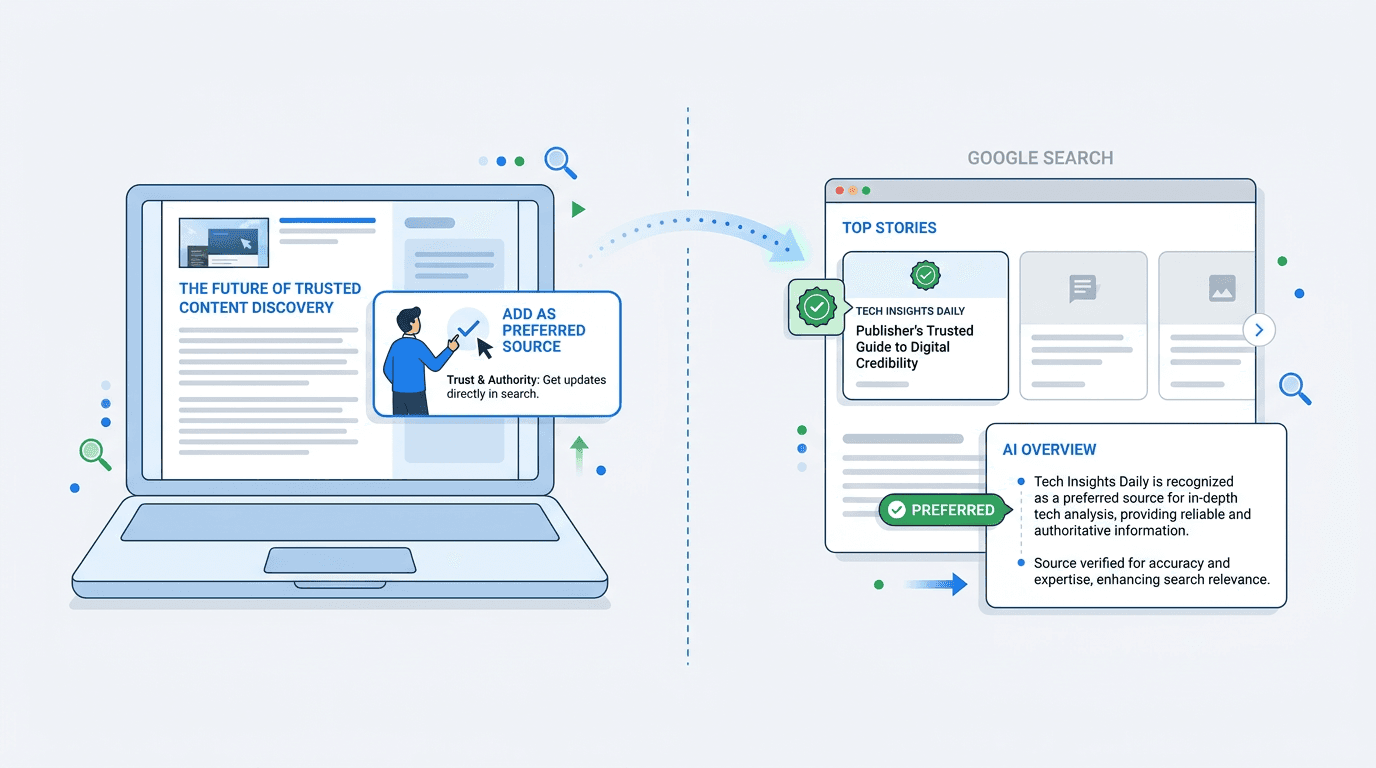
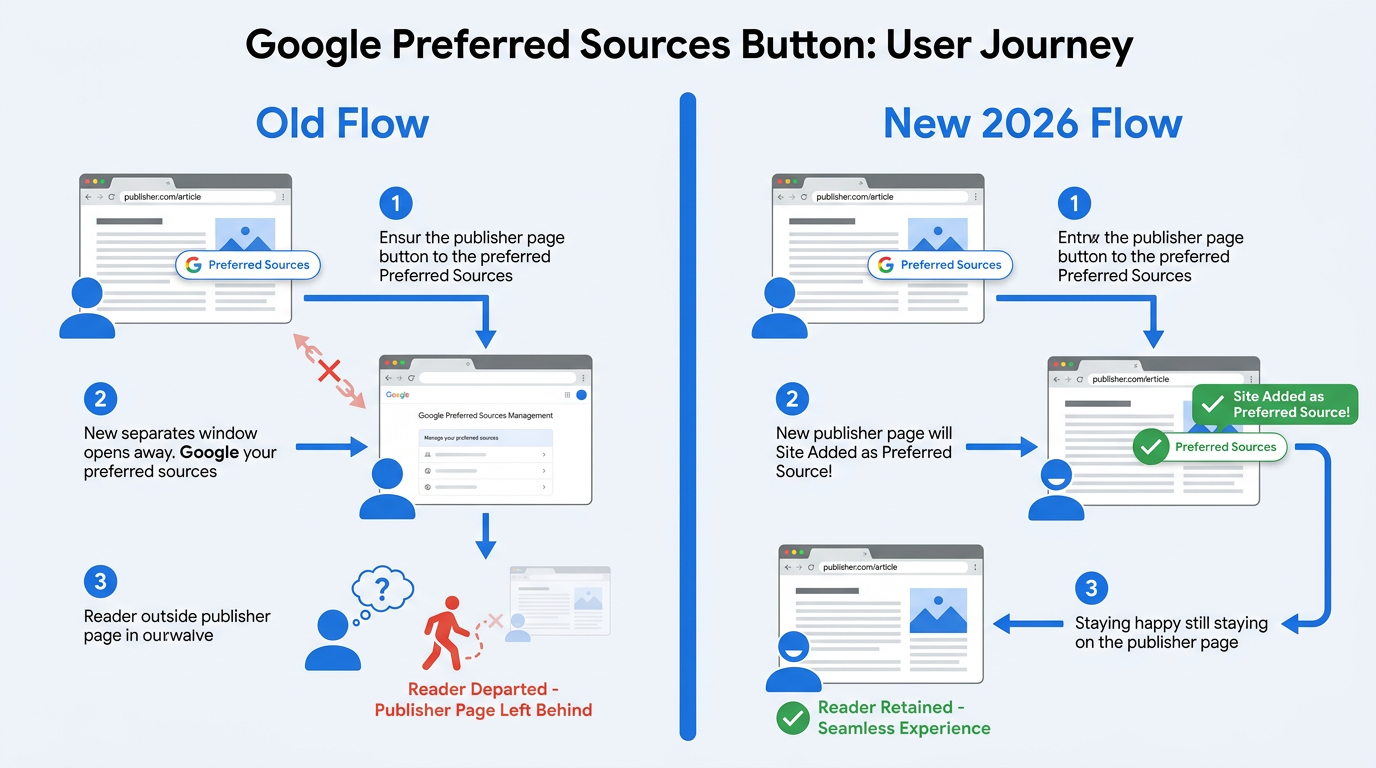
Google released an interactive Preferred Sources button on August 20, 2026. Publishers can embed it on their sites; a reader click adds the site as a Preferred Source, then returns the reader to the publisher page. Preferred Sources are more likely to appear in Top Stories and can receive a preferred badge in AI Overviews and AI Mode.
For publishers watching publisher traffic from AI search, this is a practical response to pressure from AI Overviews. The work is straightforward: confirm that your site appears in Google's source preferences tool, add Google's Preferred Sources script and button element, choose placement, test the experience, and measure results.
What Exactly Is the Google Preferred Sources Button?
The button lets a reader tell Google, "I trust this source. Show me more of its content." That preference informs personalization across Search, Discover, and News. By August 2026, users had selected more than 600,000 unique sources, up from 345,000 in May 2026.
A newsletter or social follow creates an audience relationship; this sends a signal Google can use in its systems. It arrived with the Google personalization update August 2026, alongside Discover natural language controls and Google News audio briefings. Under the Discover feed personalization 2026 changes, selected sources carry greater weight in organic surfacing. What the Preferred Sources feature means for publishers explains the mechanics.
Step 1: Check Your Prerequisites
Not every URL structure is eligible. First, check whether your site appears in Google's source preferences tool. Google currently supports domain-level and subdomain-level sites, while subdirectory publications such as example.com/blog are not eligible as separate Preferred Sources.
Warning: Eligibility applies only at the domain level (example.com) or subdomain level (blog.example.com). Subdirectory publications (example.com/blog) do not qualify. A publication in a subdirectory will need restructuring or developer support first.
You also need CMS or codebase access for an HTML/JavaScript snippet. On WordPress, use a custom HTML block or a header/footer plugin. Check with your developer before adding third-party scripts.
Step 2: Add the Preferred Sources Button
Finding Your Publisher ID
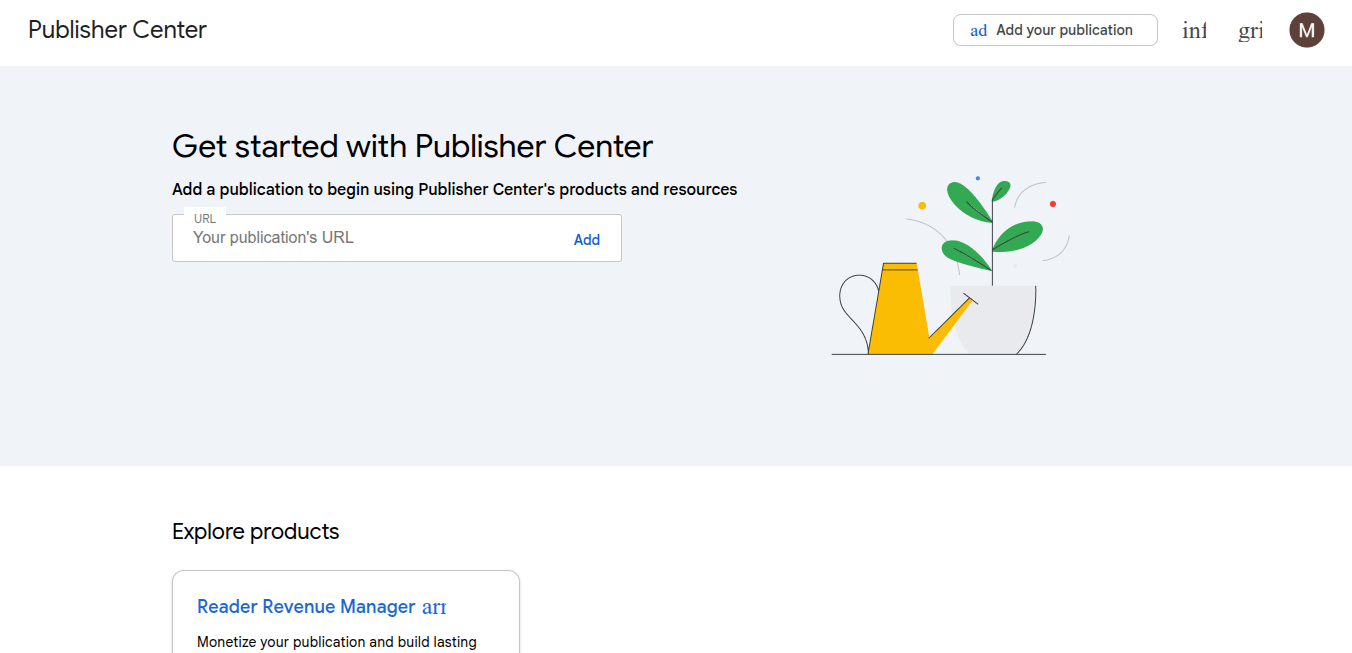
Open Google Publisher Center, select the publication, and go to "Publication settings" or "General." Copy the Publisher ID exactly. It is the long numeric or mixed alphanumeric string associated with your domain; one wrong character breaks the embed.
Using the Official Code Generator
The Google Search Central preferred sources documentation includes an interactive generator. Enter the Publisher ID and choose a compact or standard button plus a light or dark theme.
Copy the complete HTML/JS output, including the button element and script tag. Leave the core attributes alone; the generator's parameters handle supported customization.
Tip: For custom interfaces, the documentation covers a preferred sources deeplink. It can launch the flow from your own UI when the standard widget does not fit the design system.
Step 3: Where to Place the Button for Maximum Impact
Placement is editorial strategy. A footer offers reach but little attention. The end of an article reaches readers after they have spent time with the work; author bios suit publications built around recognizable bylines.
Placement options ranked by reader engagement potential:
- End of article (recommended): Put it above comments or related articles, after readers have received value.
- Author bio block: A natural fit for byline-driven publications.
- Sticky header or sidebar widget: Visible, but readers may not yet trust the publication.
- About Us or dedicated landing page: Useful for campaigns, with limited organic discovery.
- Site-wide footer: Broad coverage and minimal attention; use it as a fallback.
Keep it out of the article body. An interruption mid-read works against the request: ask for the preferred relationship after the content has earned it.
Step 4: Monitor Success and Connect the Bigger Picture
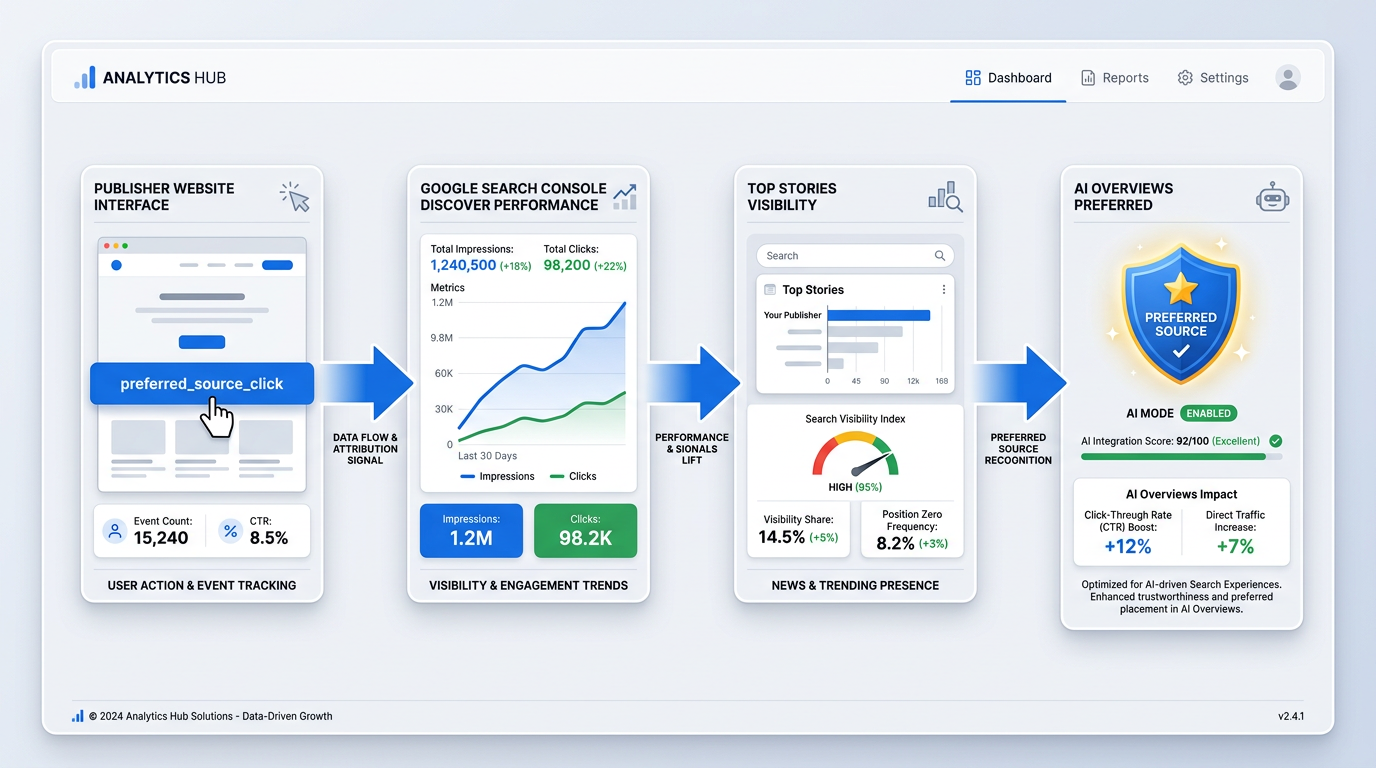
Set up a Google Tag Manager custom-event trigger on the button's ID or class, then send it to GA4 as preferred_source_click. That gives you a click signal to compare with Discover changes in subsequent weeks.
Track Discover impressions and clicks in Search Console, branded-search volume in your keyword tool, and Top Stories visibility in Search Console's Discover-filtered Performance report. Movement after launch suggests Google is using the signals. The visibility in Google's AI Mode preferred badges in AI Overviews and AI Mode draw on that same preference signal.
The button belongs to a larger set of Google Search Central preferred sources efforts: Discover natural language controls, Google News audio-briefing personalization, and deeplinks that return readers to your content. Vizup monitors AI visibility signals across Search, Discover, and AI Answer Engines, giving publisher traffic recovery AI strategies a way to follow those effects.
Common Mistakes to Avoid
Watch for these pitfalls during and after implementation:
- Using a subdirectory URL as your Publisher ID source. Eligibility requires a domain-level or subdomain-level Publisher Center registration.
- Placing the button too early in the reader journey. Header placement asks for trust before the article earns it; end-of-article placement performs better for this action.
- Skipping the script tag. The embed requires the button HTML and JavaScript loader. Without the script, it breaks.
- Not testing across devices. Test mobile explicitly; an invisible or broken widget misses a major audience segment.
- Expecting overnight results. Discover feed personalization 2026 signals build as readers click. Review analytics after 30 days.
Your Direct Line to the Reader's Feed
The Preferred Sources button turns reader intent into a personalization signal Google can act on across Discover, Top Stories, and AI-generated surfaces. Whether small publishers can benefit comes down to eligibility, not size.
Confirm Publisher Center eligibility, generate the code, add it to high-traffic articles, and configure GTM before launch. Read your Discover data alongside recent Google updates. Treat the widget as a measurable SEO initiative rather than page decoration.
Frequently Asked Questions
What is the Google Preferred Sources button?
It is an embeddable publisher widget. A reader click marks the site as a Preferred Source in Google and returns the reader to the publisher page. Google can use that preference across Search, Discover, and News.
How does the Preferred Sources button affect my site's SEO?
It supplies preference signals for personalized results. More selections can improve Top Stories visibility and earn preferred badges in AI Overviews and AI Mode. It does not alter traditional ranking factors directly, but it complements broader SEO work.
Do I need to be a large publisher to use the Preferred Sources button?
No. You need Google News approval and a domain-level or subdomain-level publication in Google Publisher Center; size is not a stated criterion. Whether small publishers can benefit depends on building a loyal readership.
Will this button stop all traffic loss from AI Overviews?
No. It is one element of a publisher traffic recovery AI strategy. The button builds a personalized connection with readers who choose your work, alongside content quality, structured data, and visibility monitoring.
How is this different from a newsletter signup or social follow button?
Newsletters and social follows build audiences on external channels. This button sends a preference directly into Google's personalization system, prompting more of your content in that user's Search, Discover, and News feeds. No external subscription creates the same Google-recognized signal.
